
Built-in GET/SET RPC Methods
Built-in GET/SET RPC methods let you read and write telemetry and attribute values on connected devices without any additional connector configuration. The method name and parameter string are sent as the RPC payload from the ThingsBoard RPC debug terminal on the gateway dashboard.
The following connectors support built-in GET/SET RPC methods:
Every telemetry and attribute parameter has GET and SET methods automatically, based on
the path defined in the connector configuration.
For example, given a timeseries entry:
{ "timeseries": [ { "key": "temperature", "path": "${ns=3;i=1001}" } ]}Read the current value of a node by its OPC-UA node ID:
get ns=3;i=1001;Response:
{"result": 25.34}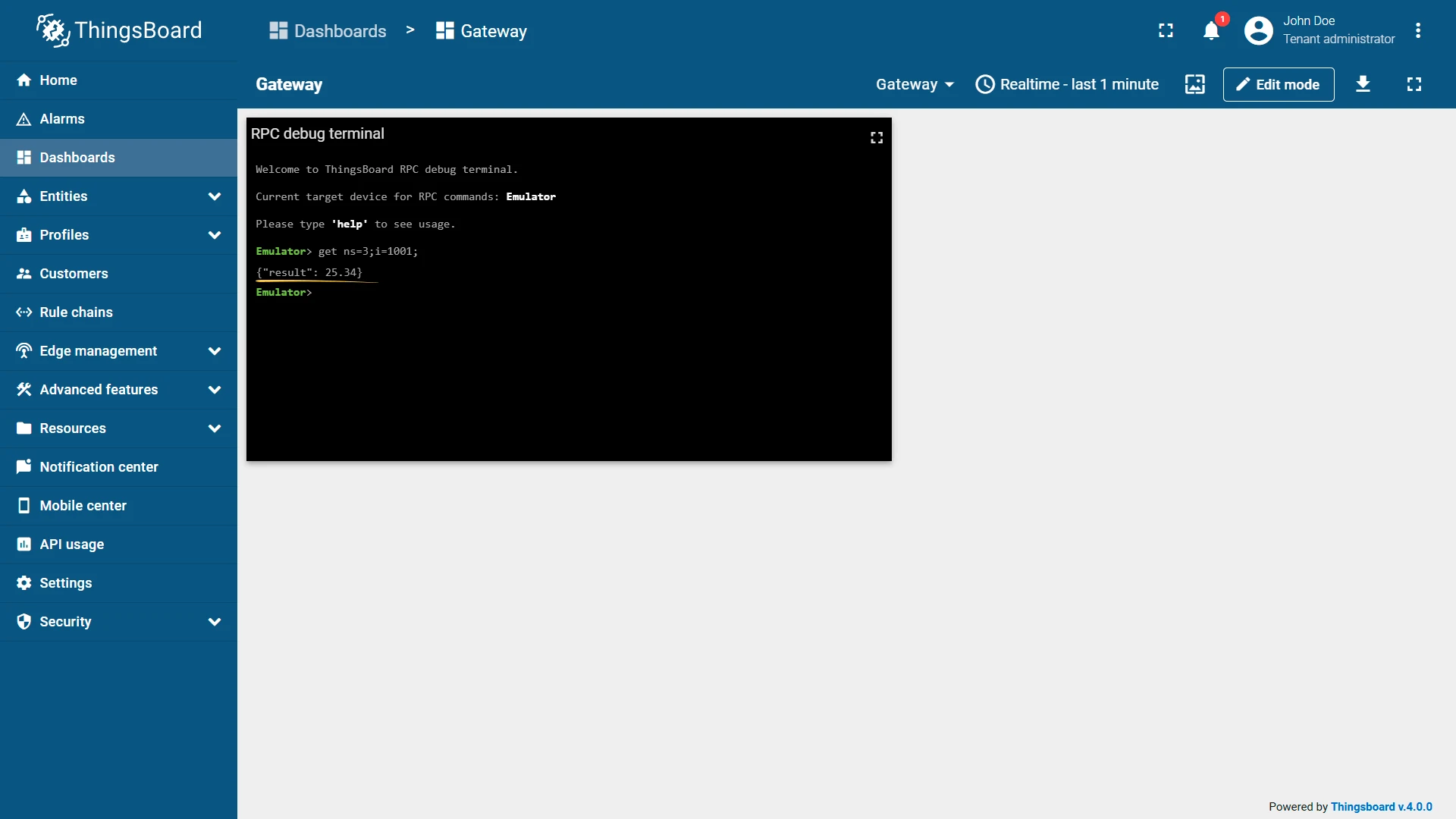
Write a numeric value to a node:
set ns=3;i=1001; 23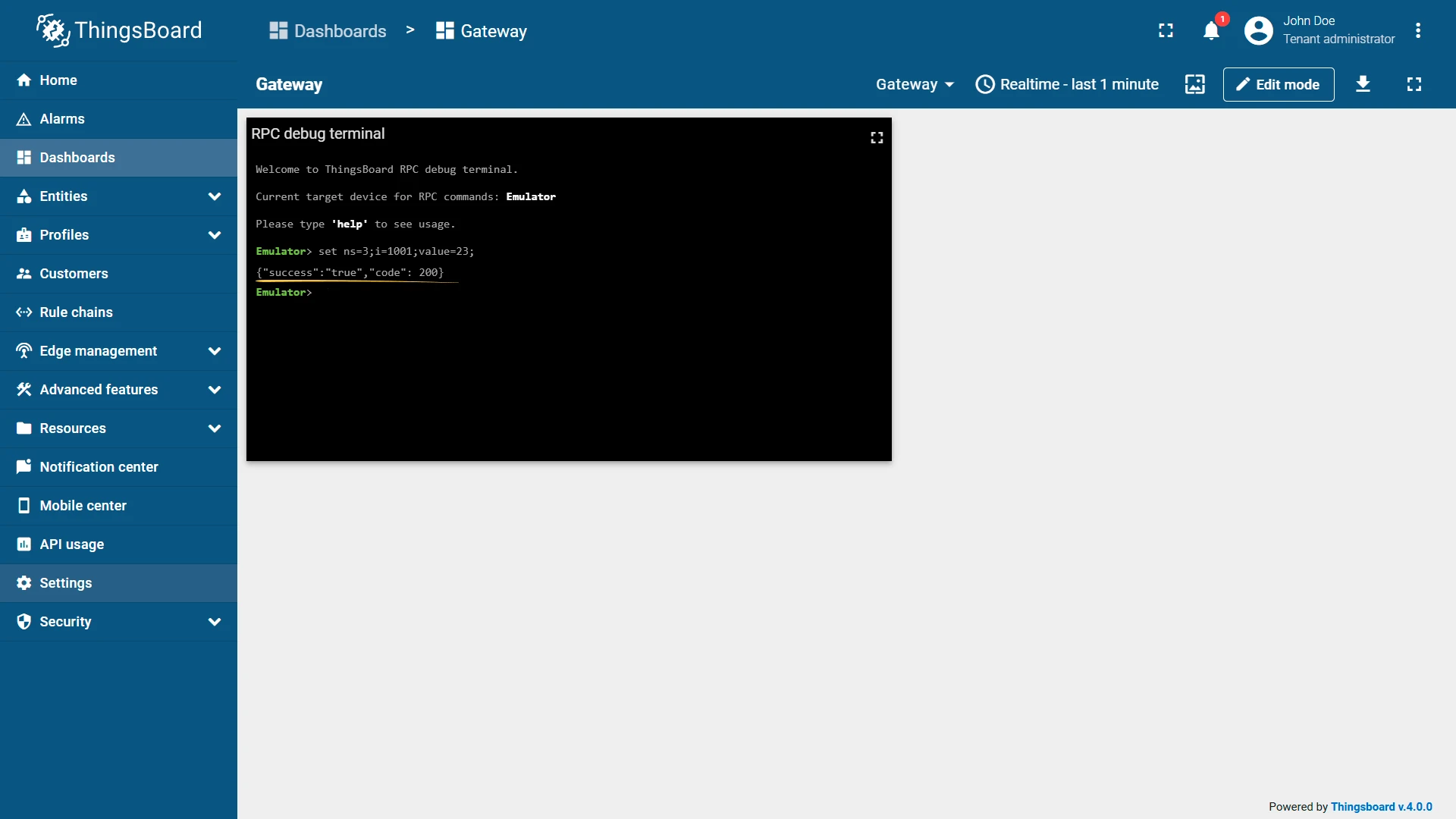
Write a string value to an attribute node (e.g. set model to T3000):
set ns=3;i=1008; T3000;Response:
{"success": "true", "code": 200}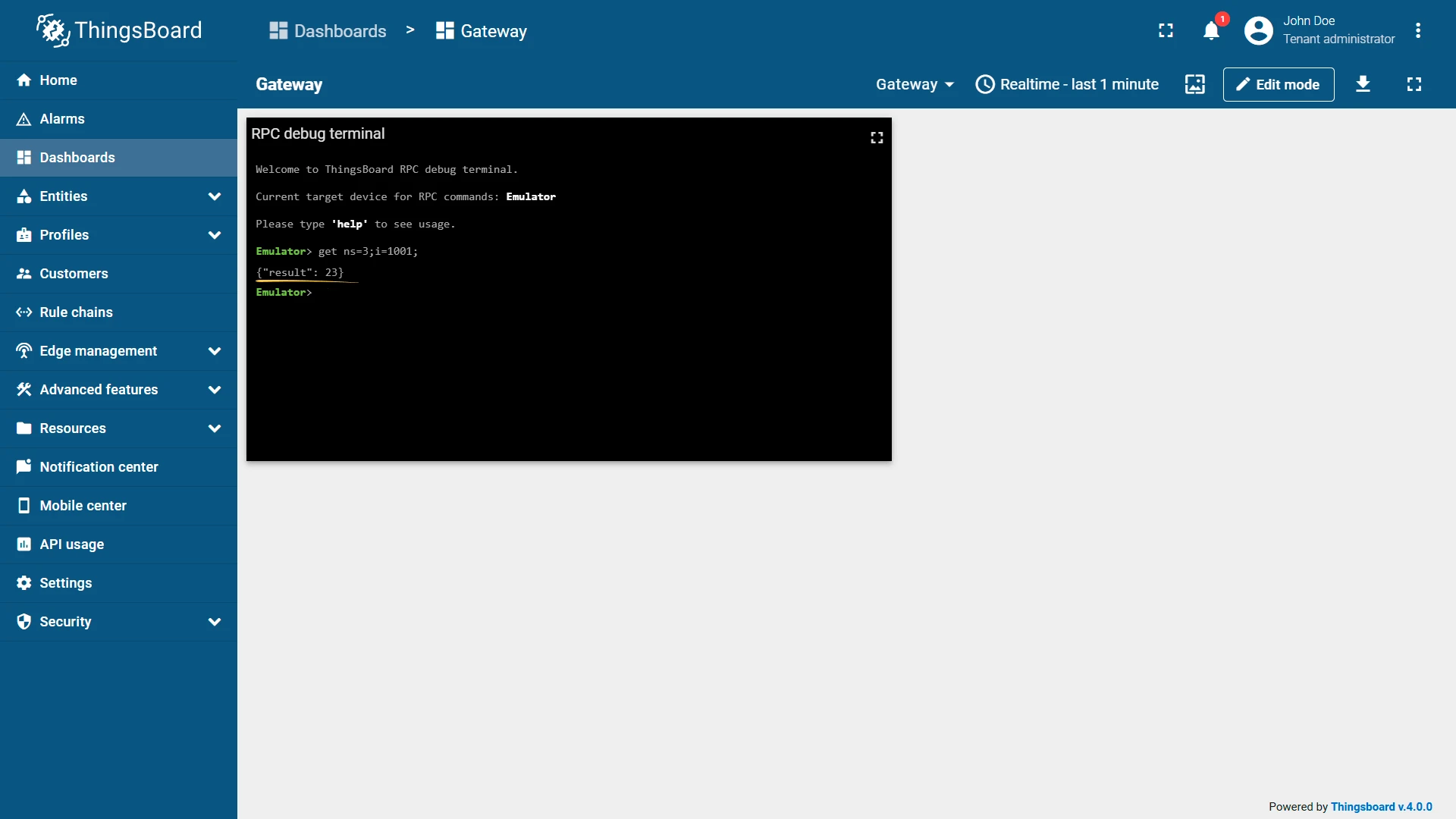
Read the value of a Modbus slave register:
get type=<type>;functionCode=<functionCode>;objectsCount=<objectsCount>;address=<address>;| Parameter | Description |
|---|---|
type | Data type of the value to read |
functionCode | Modbus function code |
objectsCount | Number of objects to read |
address | Register address |
Example — read a 16-bit integer from register 1 (outdoor temperature):
get type=16int;functionCode=3;objectsCount=1;address=1;Response:
{"result": {"value": 13}}
Write a value to a Modbus slave register:
set type=<type>;functionCode=<functionCode>;objectsCount=<objectsCount>;address=<address>;value=<value>;| Parameter | Description |
|---|---|
type | Data type of the value to write |
functionCode | Modbus function code |
objectsCount | Number of objects to write |
address | Register address |
value | Value to write |
Example — write 80 to register 2 (room light level):
set type=16int;functionCode=6;objectsCount=1;address=2;value=80;Response:
{"result": {"value": "80"}}
Verify by reading the register back:
get type=16int;functionCode=3;objectsCount=1;address=2;Response:
{"result": {"value": 80}}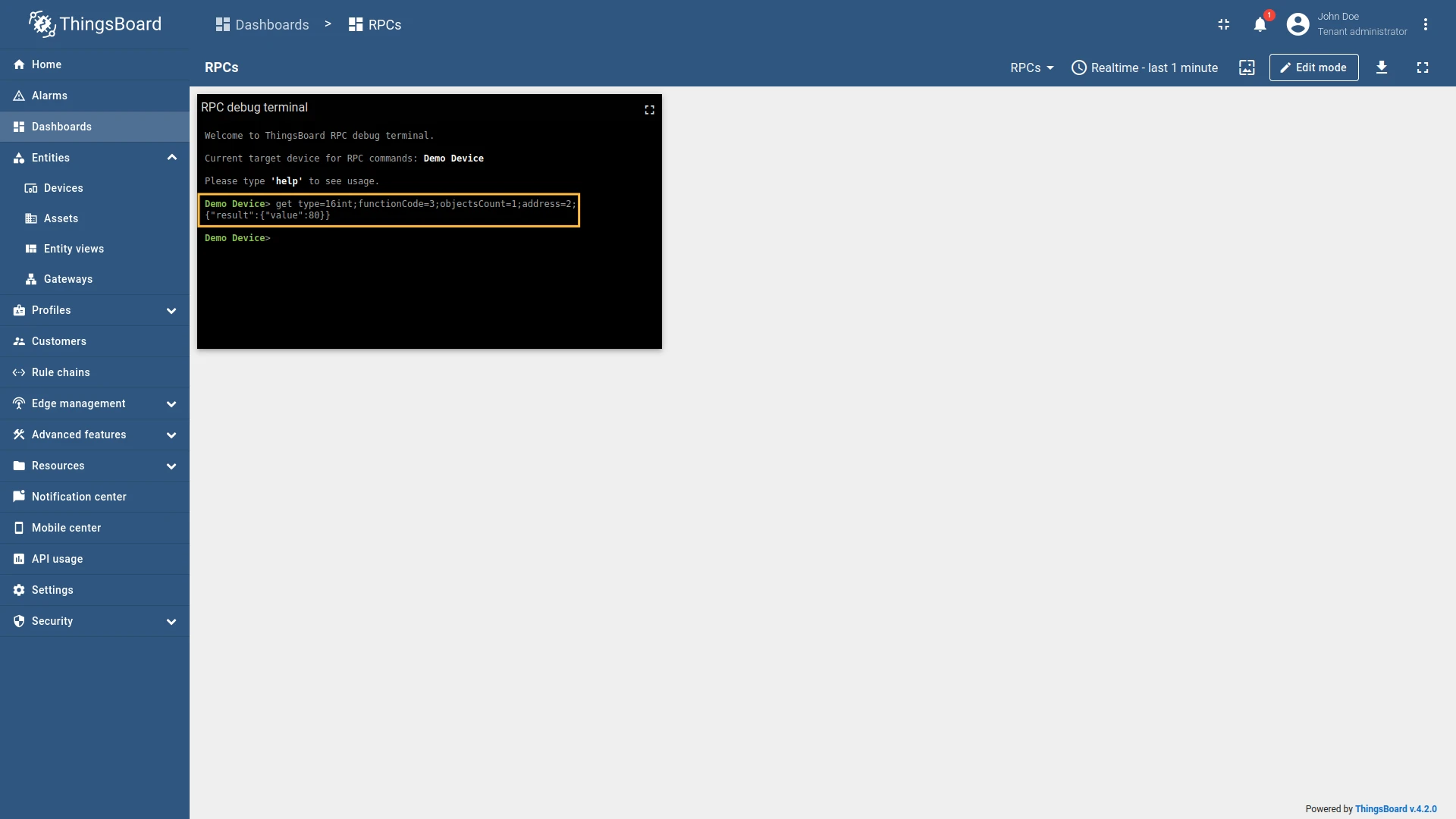
Subscribe to a response topic and publish a request to read a value:
get requestTopicExpression=<requestTopic>;responseTopicExpression=<responseTopic>;value=<value>;| Parameter | Description |
|---|---|
requestTopicExpression | Topic to publish the request to |
responseTopicExpression | Topic to subscribe to for the response |
value | Value to send with the request |
Example — read room light level from data/light_level, receiving the response on data/response:
get requestTopicExpression=data/get_light_level;responseTopicExpression=data/response;value=${params};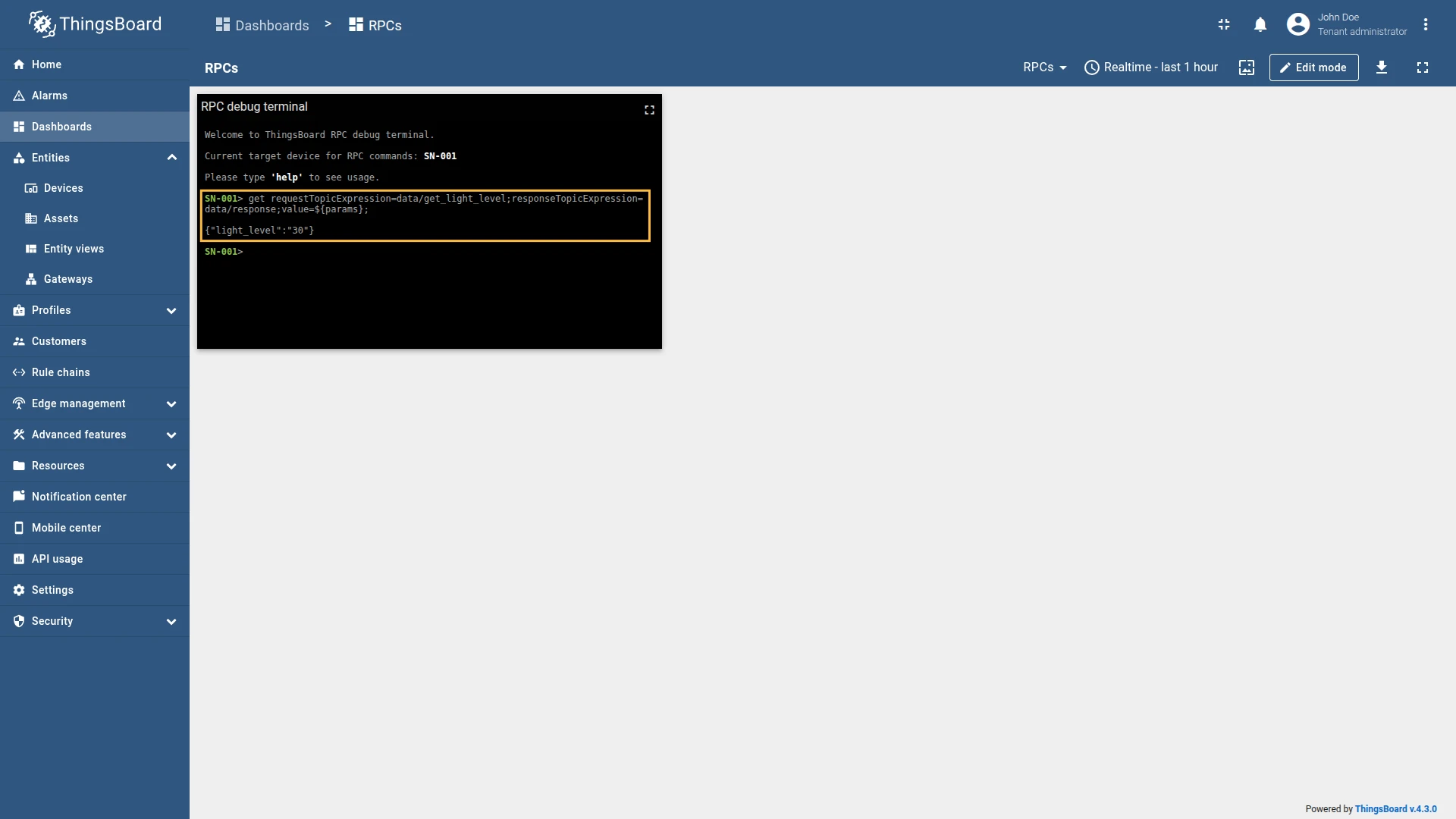
Publish a message to an MQTT topic:
set requestTopicExpression=<requestTopic>;value=<value>;| Parameter | Description |
|---|---|
requestTopicExpression | Topic to publish the value to |
value | Value to send |
Example — set room light level to 80:
set requestTopicExpression=data/set_light_level;value=80;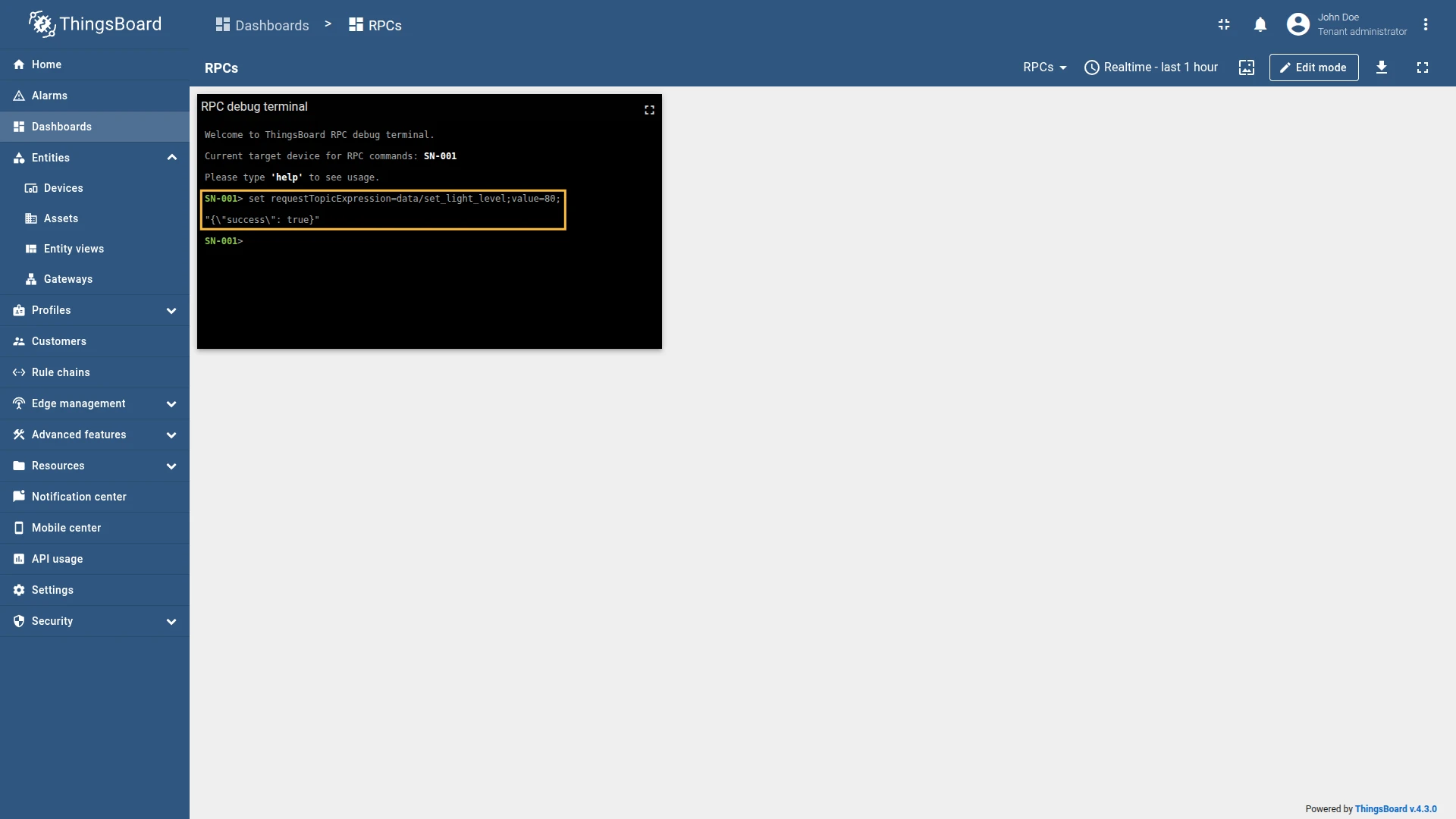
Verify by sending a GET request:
get requestTopicExpression=data/get_light_level;responseTopicExpression=data/response;value=${params};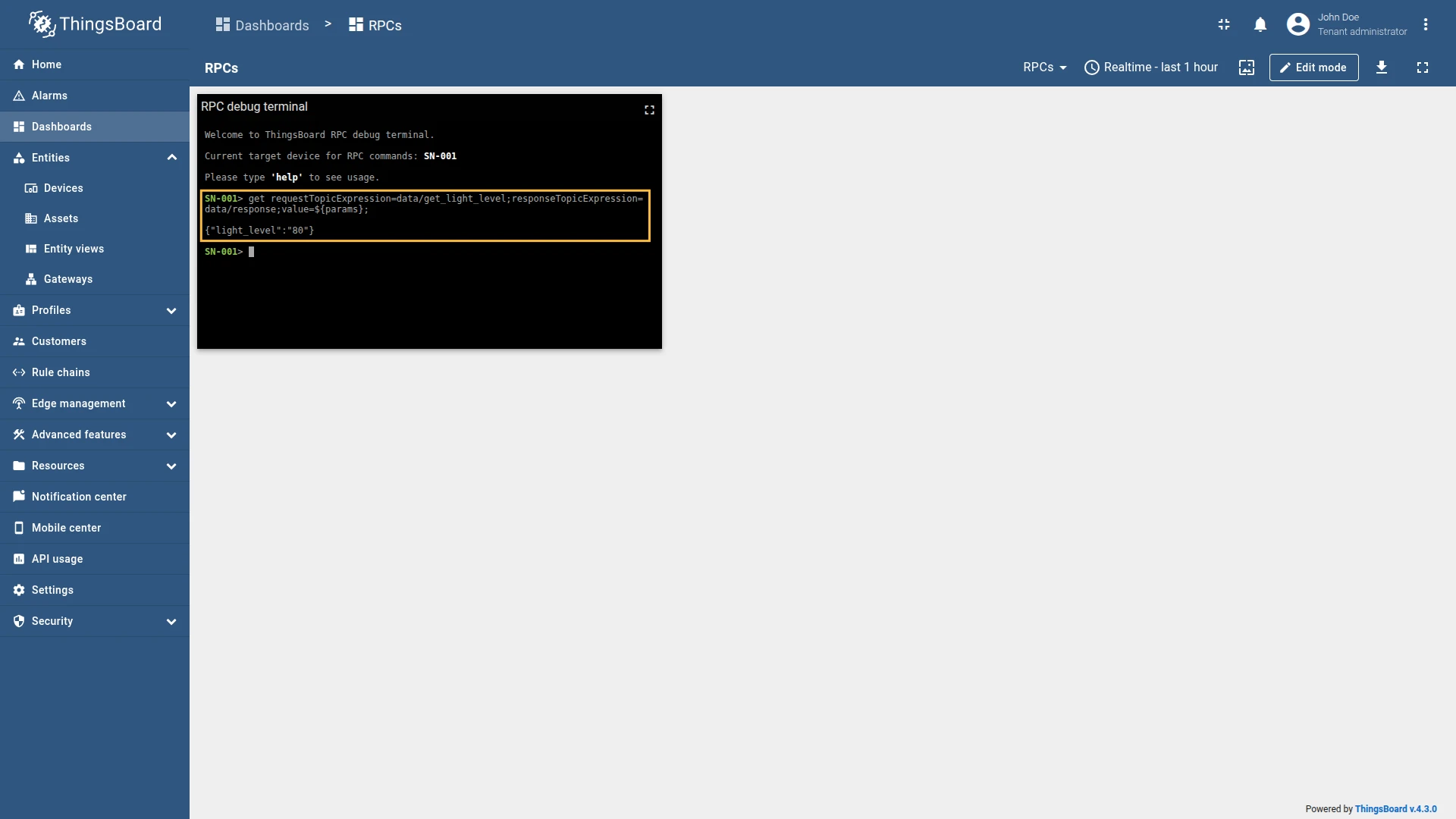
Read a property value from a BACnet device:
get objectType=<objectType>;objectId=<objectId>;propertyId=<propertyId>;| Parameter | Description |
|---|---|
objectType | BACnet object type |
objectId | BACnet object ID |
propertyId | BACnet property ID |
Example — read the current room light level (analogValue, object 1, presentValue):
get objectType=analogValue;objectId=1;propertyId=presentValue;Response:
{"result": "30.5"}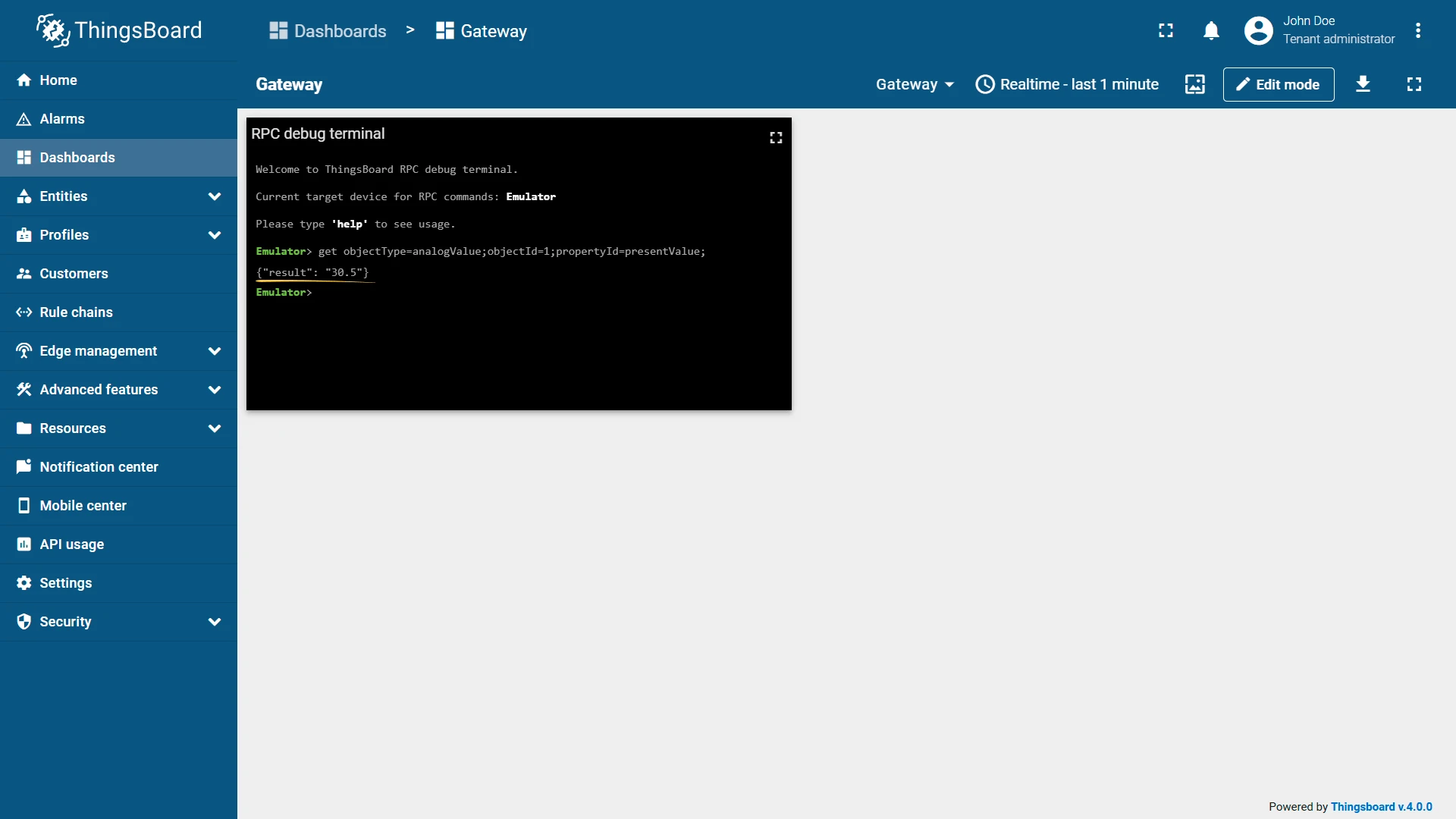
Write a property value to a BACnet device:
set objectType=<objectType>;objectId=<objectId>;propertyId=<propertyId>;priority=<priority>;value=<value>;| Parameter | Description |
|---|---|
objectType | BACnet object type |
objectId | BACnet object ID |
propertyId | BACnet property ID |
priority | Write priority (optional, integer 1–16) |
value | Value to write (optional) |
At least one of value or priority must be provided. If value is omitted, the connector
sends a relinquish command with a Null value.
Example — set the room light level to 30.9:
set objectType=analogValue;objectId=1;propertyId=presentValue;value=30.9;Response:
{"result": "{\"status\":\"ok\"}"}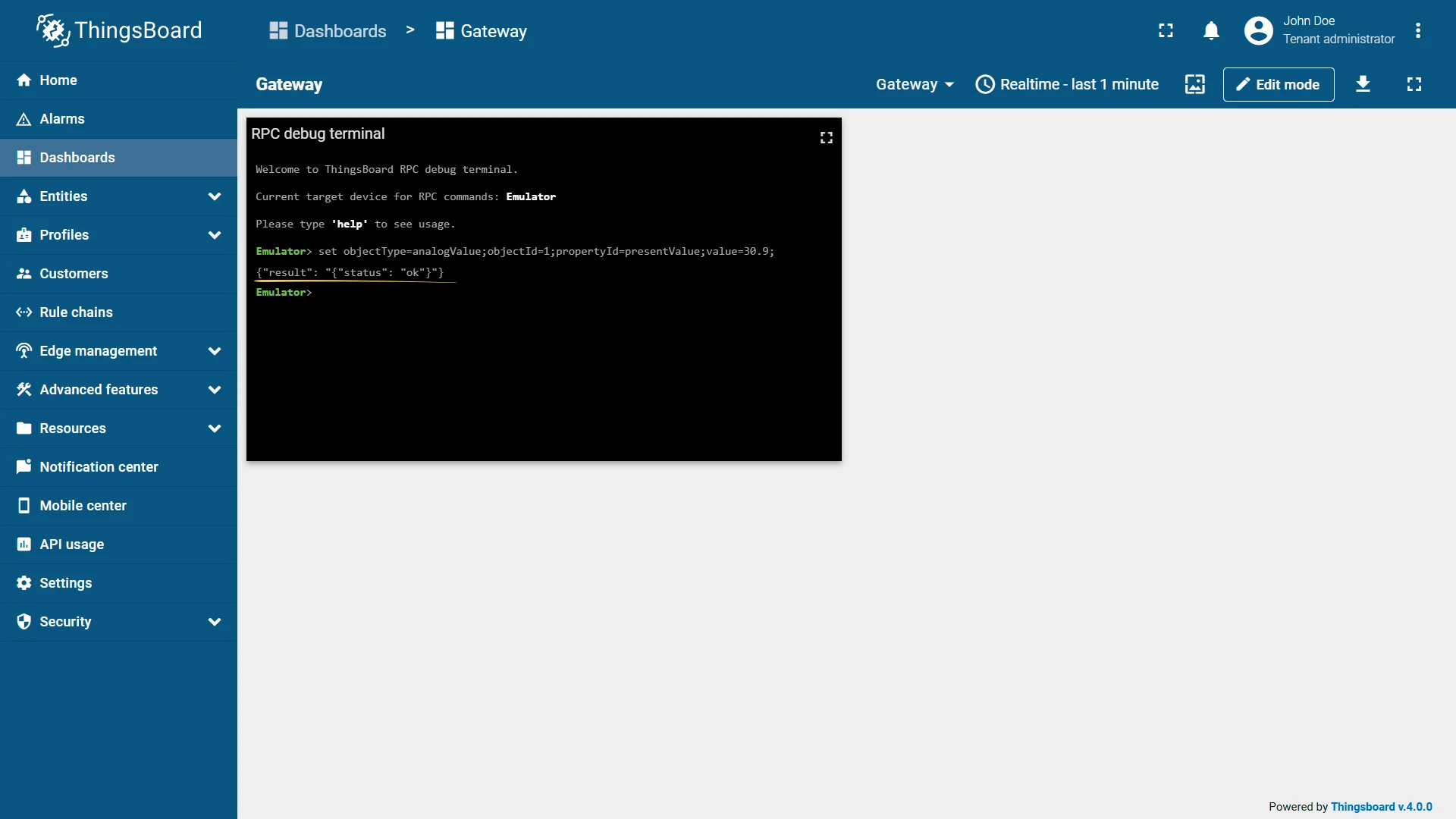
Verify with GET:
get objectType=analogValue;objectId=1;propertyId=presentValue;Response:
{"result": "30.9"}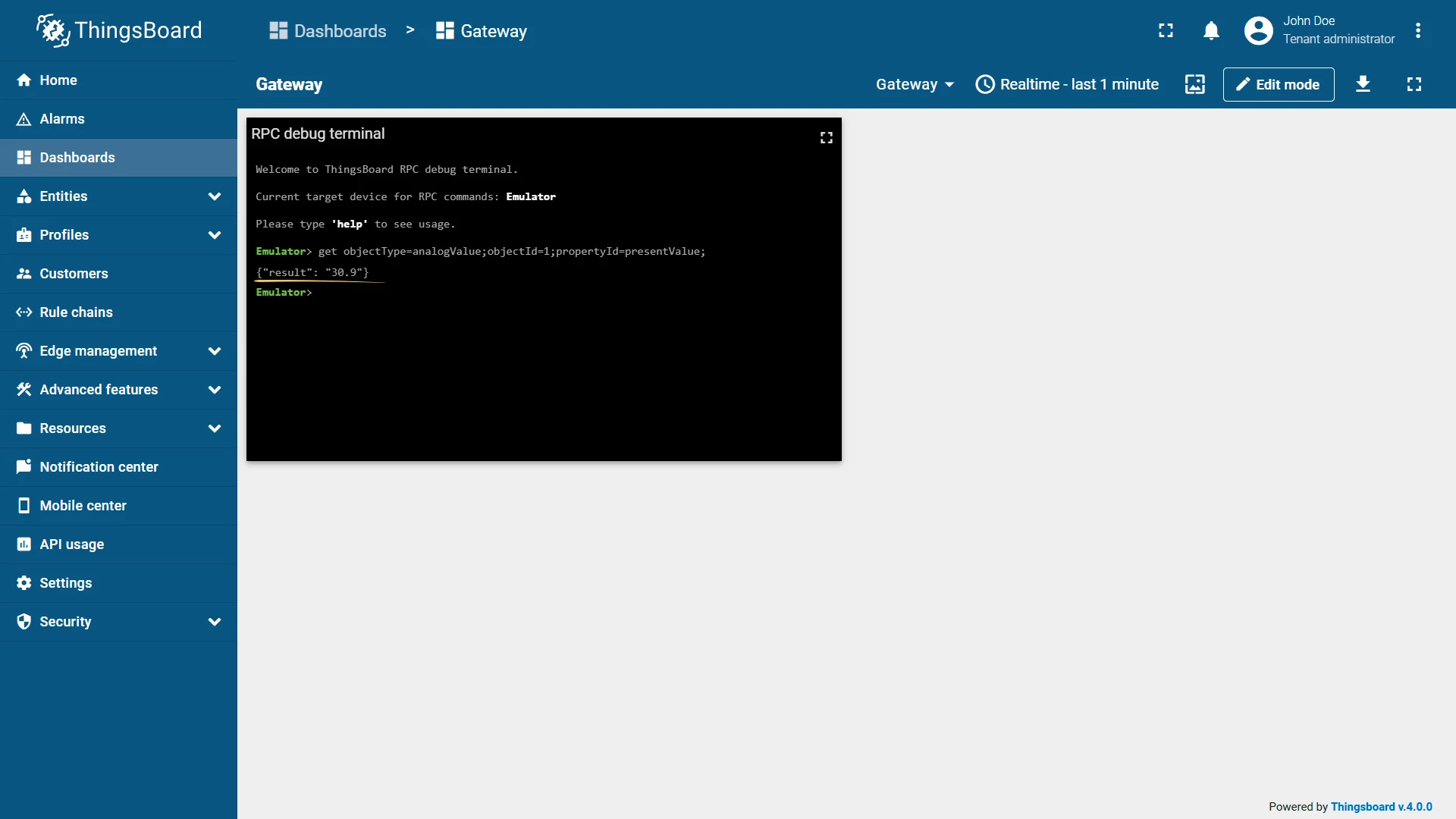
Reserved GET/SET RPC methods work differently depending on the PLC family. S7 PLCs support both
data and tag addressing, while Siemens Logo! PLCs are addressed using vmAddress.
data type addressing
Section titled “data type addressing”Read a value from an S7 PLC using data type addressing:
get type=data;dbNumber=<dbNumber>;start=<start>;dataType=<dataType>;size=<size>;bit=<bit>;| Parameter | Description |
|---|---|
dbNumber | DB number for S7 PLCs |
start | Start address for S7 PLCs |
dataType | Data type of the value to read |
size | Size of the parameter in bytes for S7 PLCs |
bit | Bit number for S7 PLCs. Only for boolean values |
Example — read a boolean status flag from DB1, byte 0, bit 1:
get type=data;dbNumber=1;start=0;dataType=bool;size=1;bit=1;Response:
{"result": true}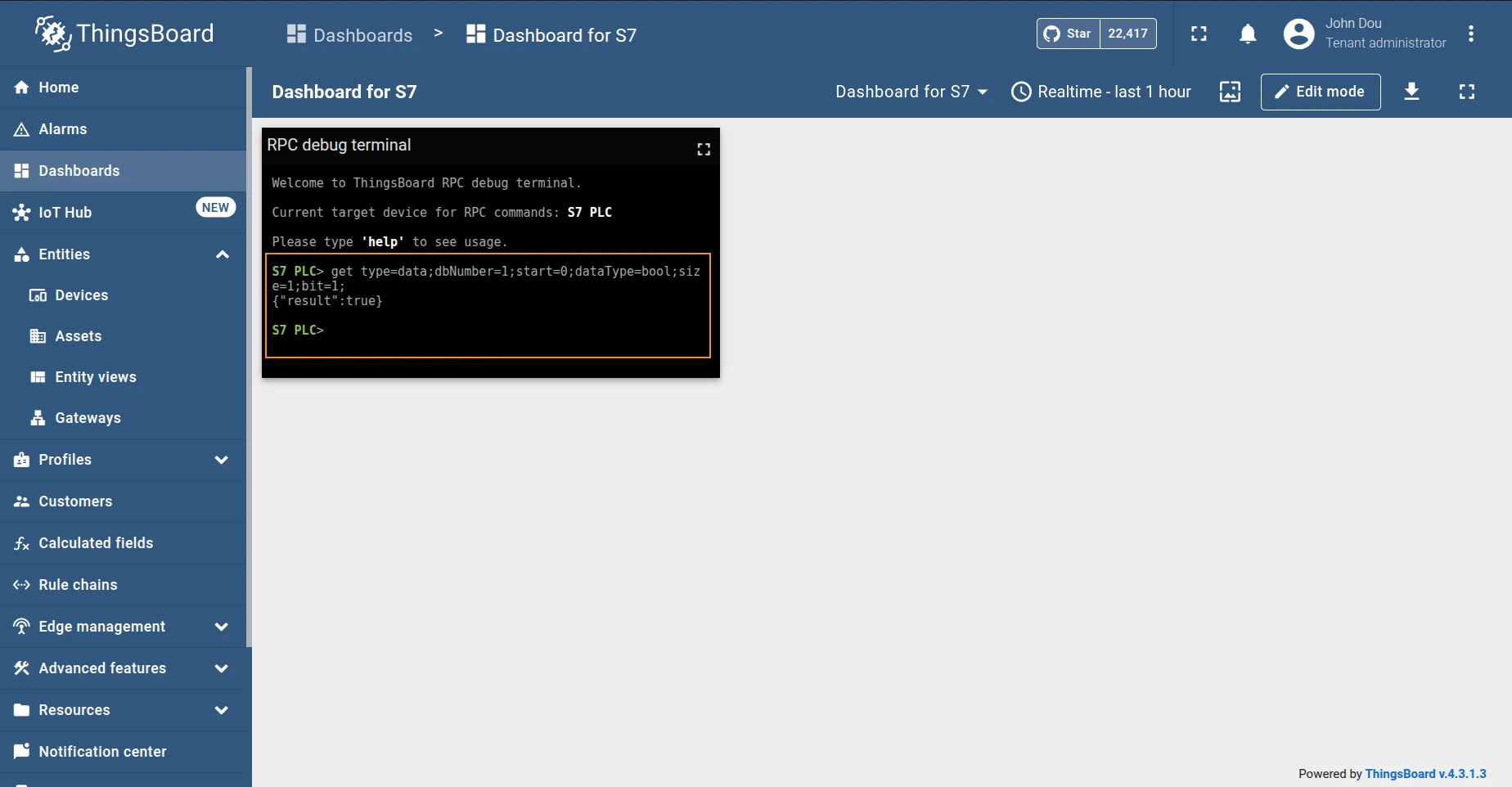
tag type addressing
Section titled “tag type addressing”Read a value from an S7 PLC using tag type addressing:
get type=tag;tag=<tag>;| Parameter | Description |
|---|---|
tag | Tag address for S7 PLCs |
Example:
get type=tag;tag=DB1.DBD104:REAL;data type addressing
Section titled “data type addressing”Write a value to an S7 PLC using data type addressing:
set type=data;dbNumber=<dbNumber>;start=<start>;dataType=<dataType>;size=<size>;bit=<bit>;value=<value>;| Parameter | Description |
|---|---|
dbNumber | DB number for S7 PLCs |
start | Start address for S7 PLCs |
dataType | Data type of the value to write |
size | Size of the parameter in bytes for S7 PLCs |
bit | Bit number for S7 PLCs. Only for boolean values |
value | Value that will be written to the device |
Example — set a boolean status flag at DB1, byte 0, bit 1 to false:
set type=data;dbNumber=1;start=0;dataType=bool;size=1;bit=1;value=false;Response:
{"result":"Successfully wrote value bytearray(b'\\x00') to device S7 PLC for RPC method set"}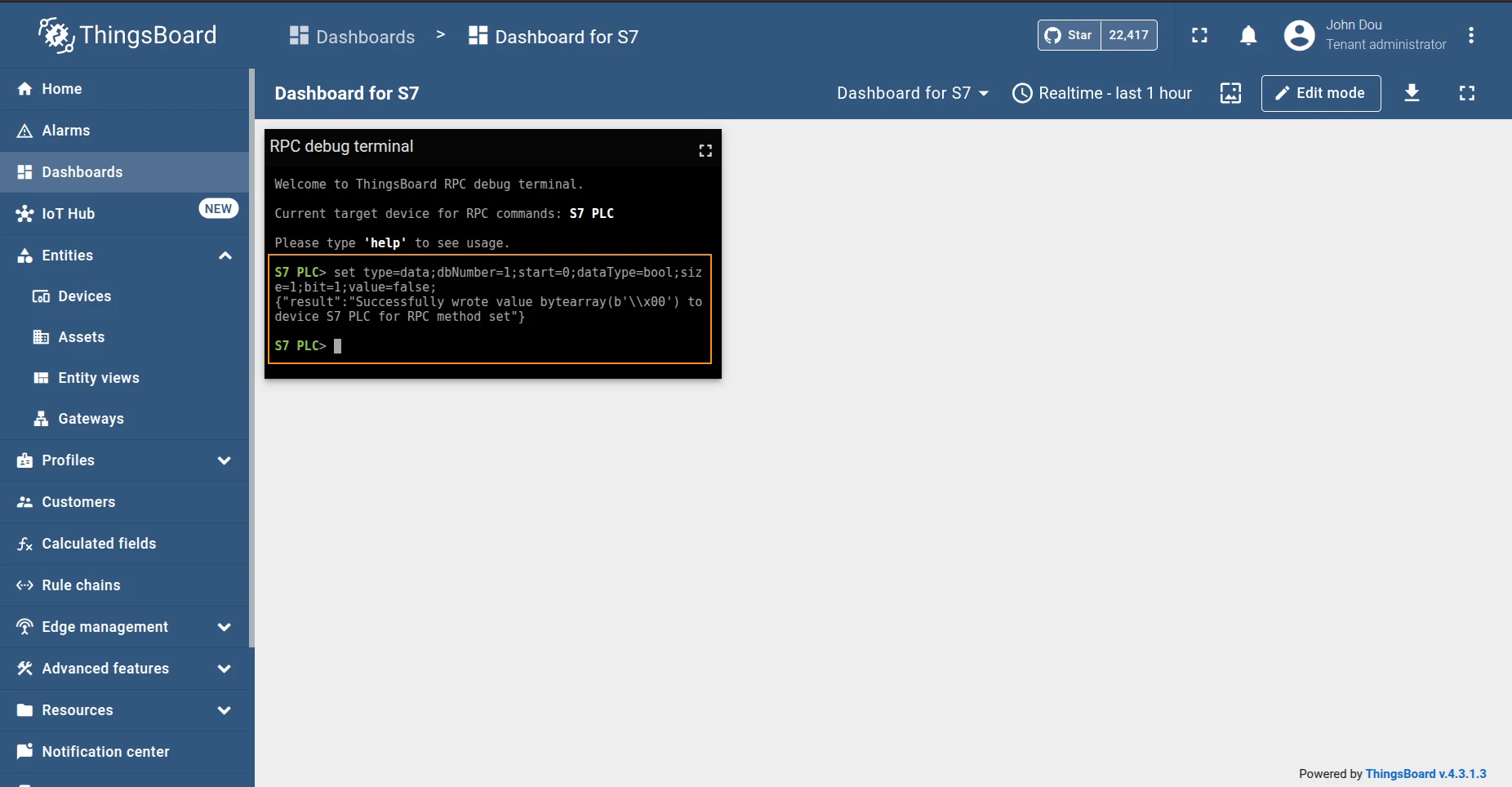
tag type addressing
Section titled “tag type addressing”Write a value to an S7 PLC using tag type addressing:
set type=tag;tag=<tag>;value=<value>;| Parameter | Description |
|---|---|
tag | Tag address for S7 PLCs |
value | Value that will be written to the device |
Example:
set type=tag;tag=DB1.DBD104:REAL;value=12345;Read a value from a Siemens Logo! PLC by VM address:
get type=vm;vmAddress=<vmAddress>;| Parameter | Description |
|---|---|
vmAddress | VM address for Siemens Logo! PLCs |
Example — read the temperature at VW30:
get type=vm;vmAddress=VW30;Response:
{"result":12}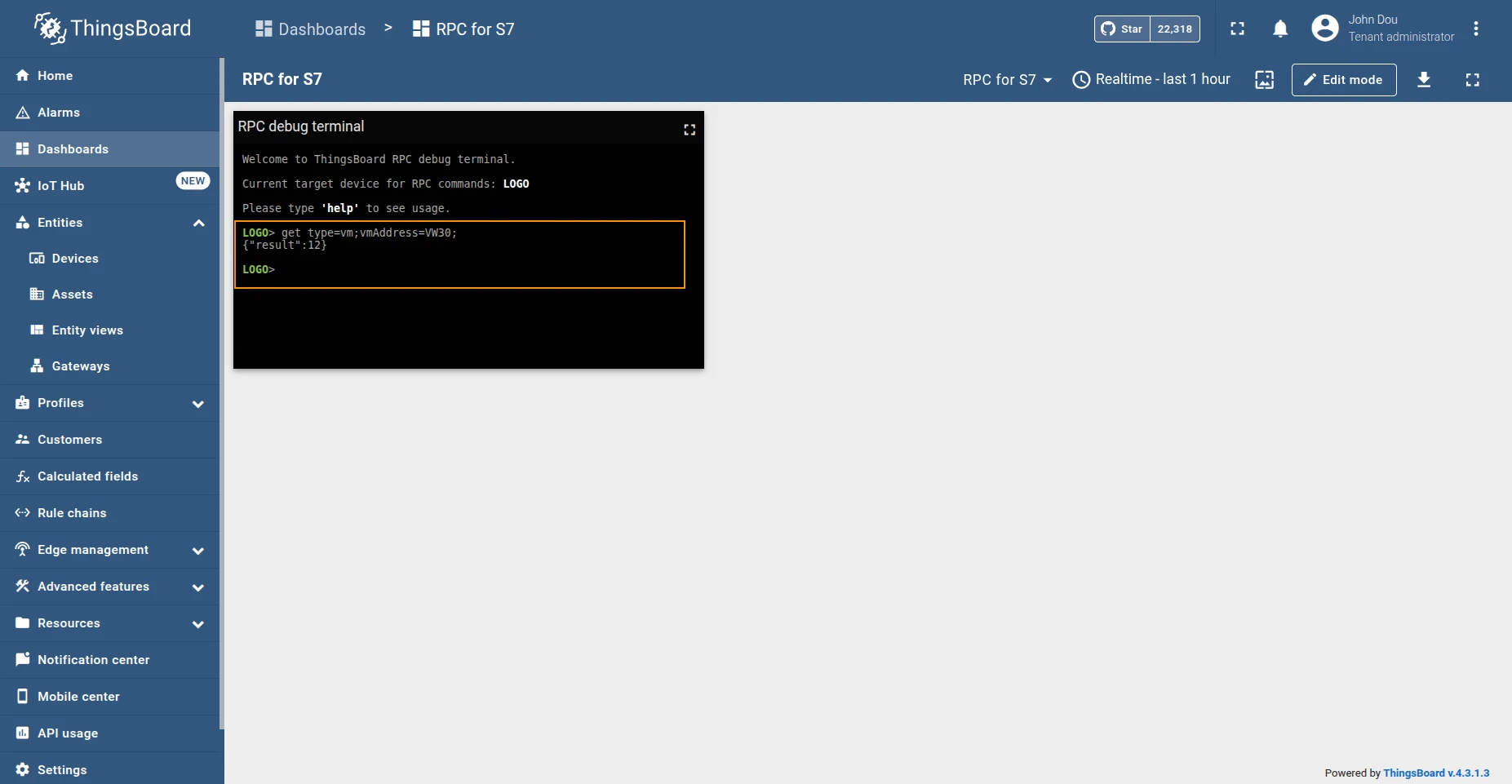
Write a value to a Siemens Logo! PLC by VM address:
set type=vm;vmAddress=<vmAddress>;value=<value>;| Parameter | Description |
|---|---|
vmAddress | VM address for Siemens Logo! PLCs |
value | Value that will be written to the device |
Example — set the temperature at VW30 to 35:
set type=vm;vmAddress=VW30;value=35;Response:
{"result":"Successfully wrote value 35 to device S7_LOGO for RPC method set"}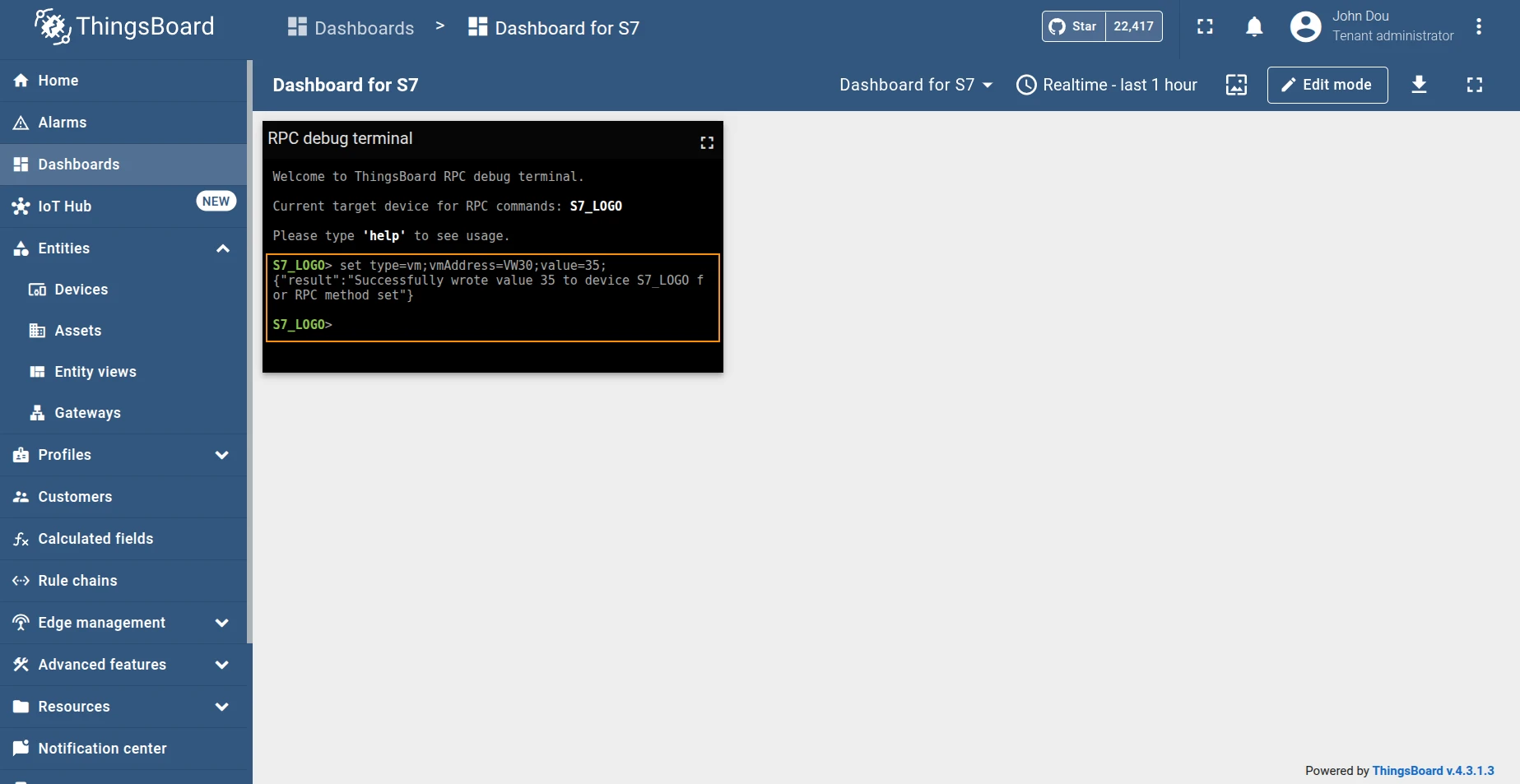
Send a GET request to a REST endpoint:
get requestUrlExpression=<url>;value=<value>;| Parameter | Description |
|---|---|
requestUrlExpression | REST endpoint URL |
value | Value to include in the request |
Example — read the room light level from http://127.0.0.1:8000/light-level:
get requestUrlExpression=http://127.0.0.1:8000/light-level;value=${params};Response:
{"result": {"light-level": 30}}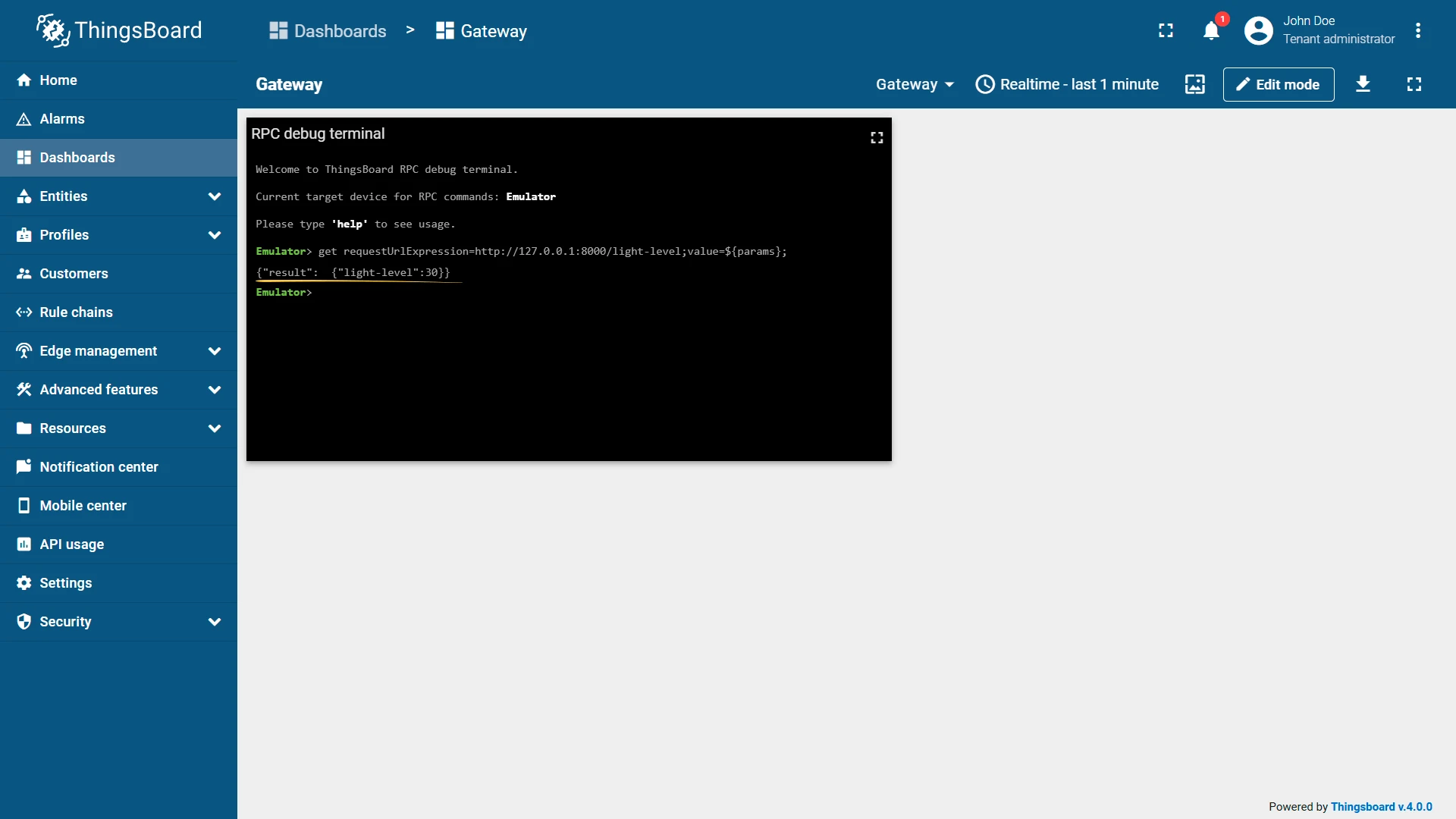
Send a POST (or other HTTP method) request to a REST endpoint:
set requestUrlExpression=<url>;value=<value>;HTTPMethod=<method>;| Parameter | Description |
|---|---|
requestUrlExpression | REST endpoint URL |
value | Value to send in the request body |
HTTPMethod | HTTP method to use (e.g. POST, PUT) |
Example — set the room light level to 80:
set requestUrlExpression=http://127.0.0.1:8000/light-level;value=80;HTTPMethod=POST;Response:
{"result": {"status": "ok"}}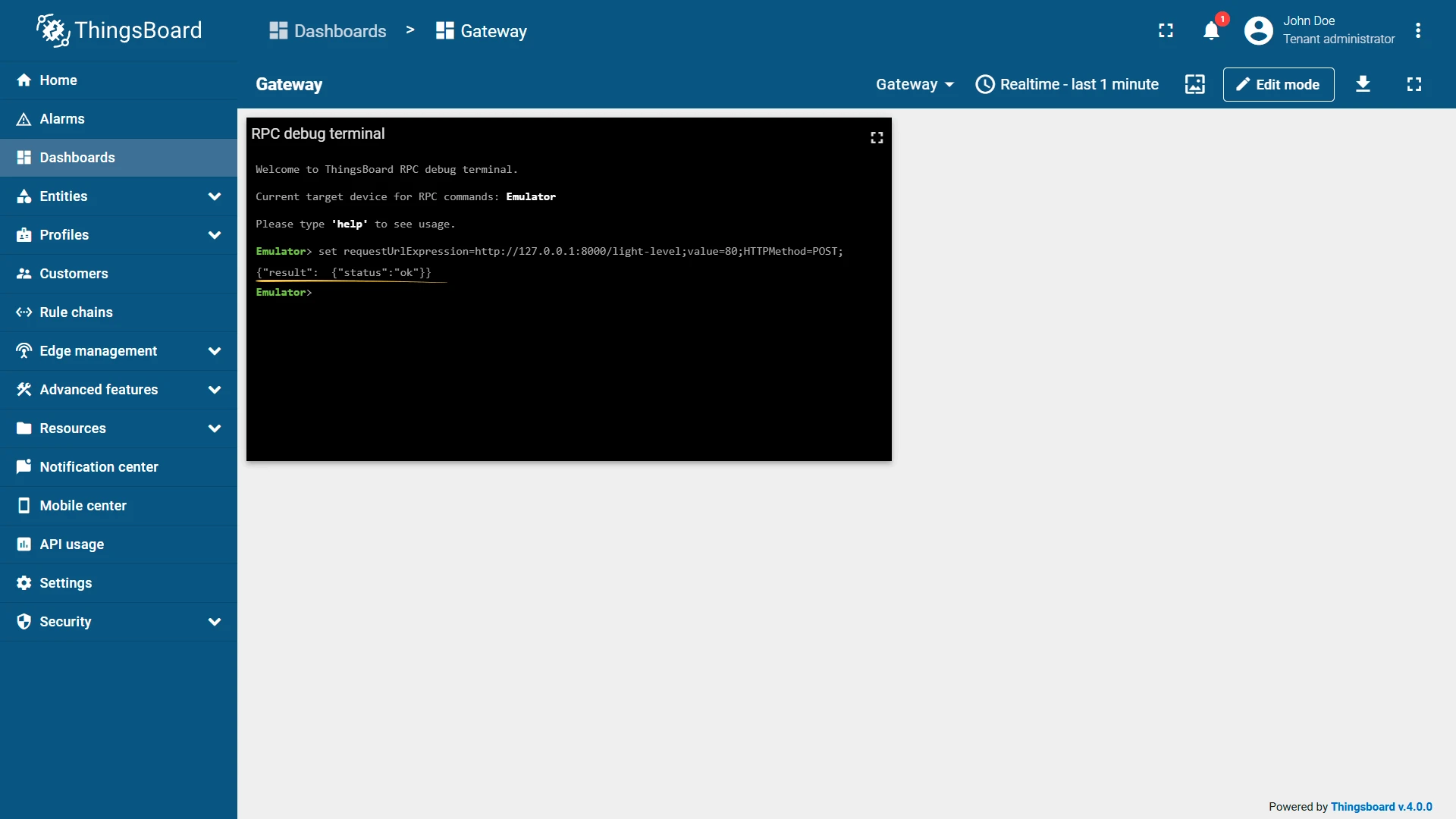
Verify with GET:
get requestUrlExpression=http://127.0.0.1:8000/light-level;value=${params};Response:
{"result": {"light-level": 80}}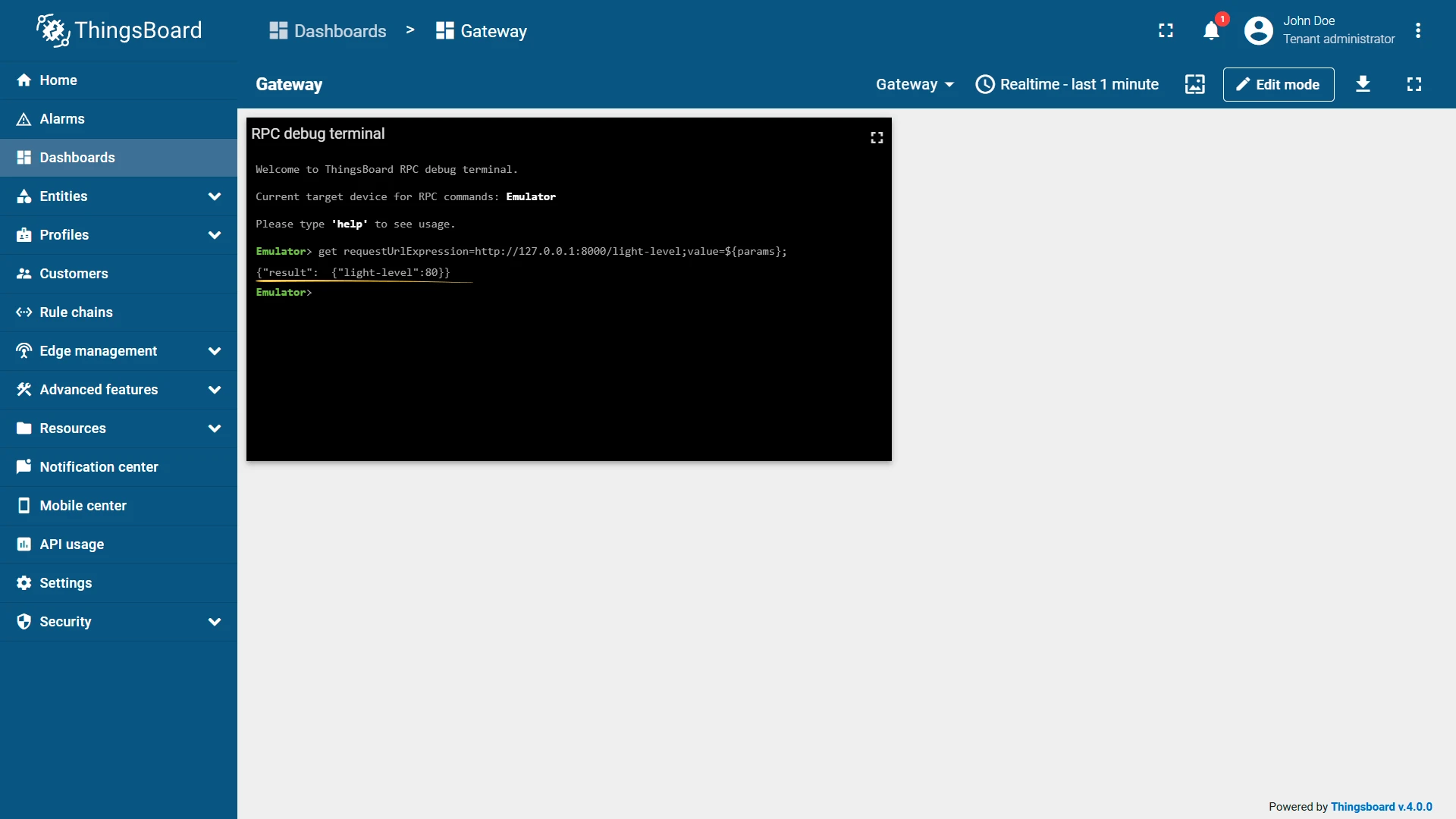
Send a GET request to an external API endpoint configured in the connector:
get requestUrlExpression=<path>;| Parameter | Description |
|---|---|
requestUrlExpression | Path or URL of the external API endpoint |
Example — read the room light level from the configured base URL:
get requestUrlExpression=light-level;Response:
{"result": "{\"light-level\":30}"}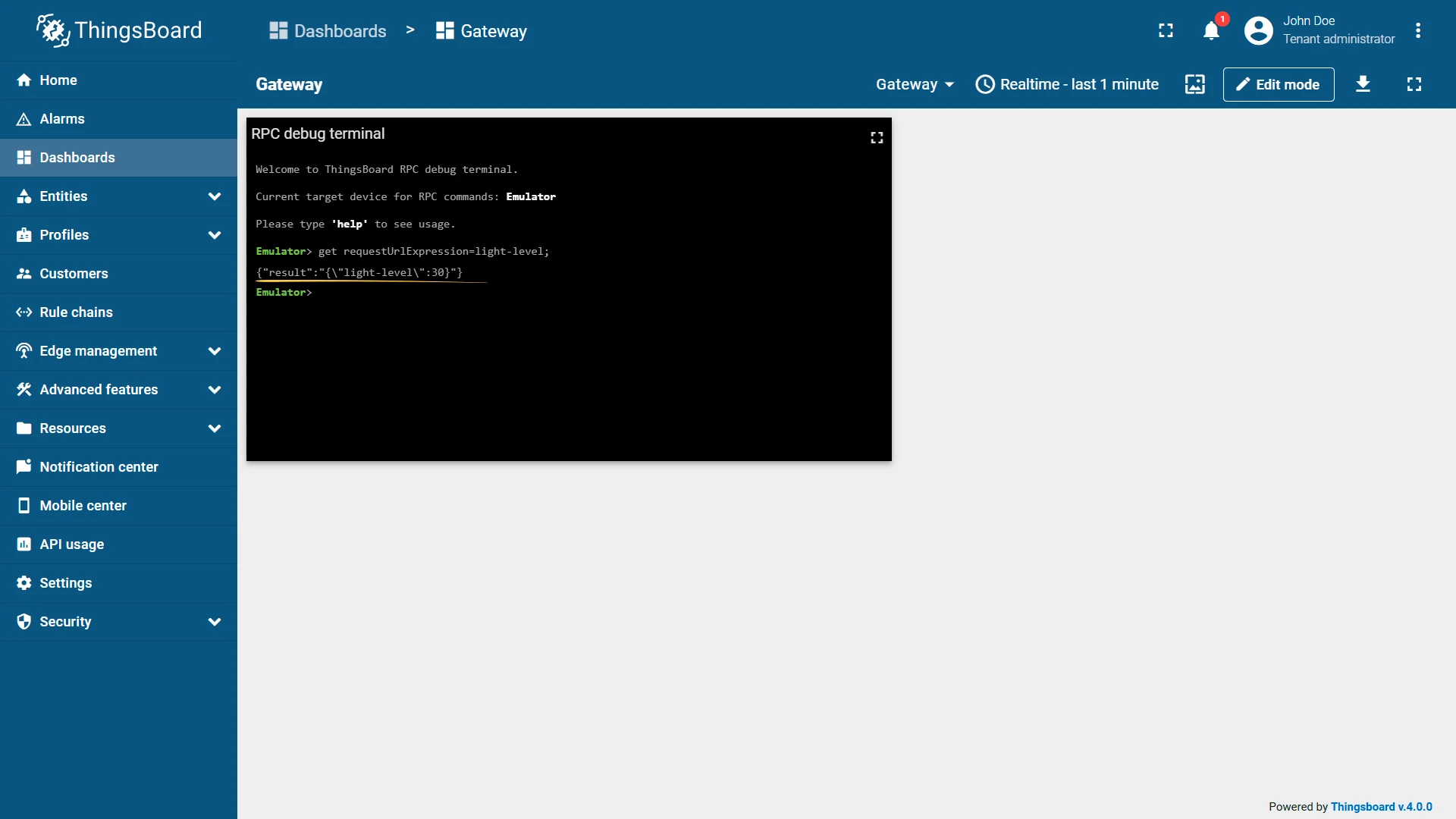
Send a POST (or other HTTP method) request to an external API endpoint:
set requestUrlExpression=<path>;value=<value>;httpMethod=<method>;| Parameter | Description |
|---|---|
requestUrlExpression | Path or URL of the external API endpoint |
value | Value to send |
httpMethod | HTTP method to use (e.g. POST, PUT) |
Example — set the room light level to 80:
set requestUrlExpression=light-level;value=80;httpMethod=POST;Response:
{"result": "{\"status\":\"ok\"}"}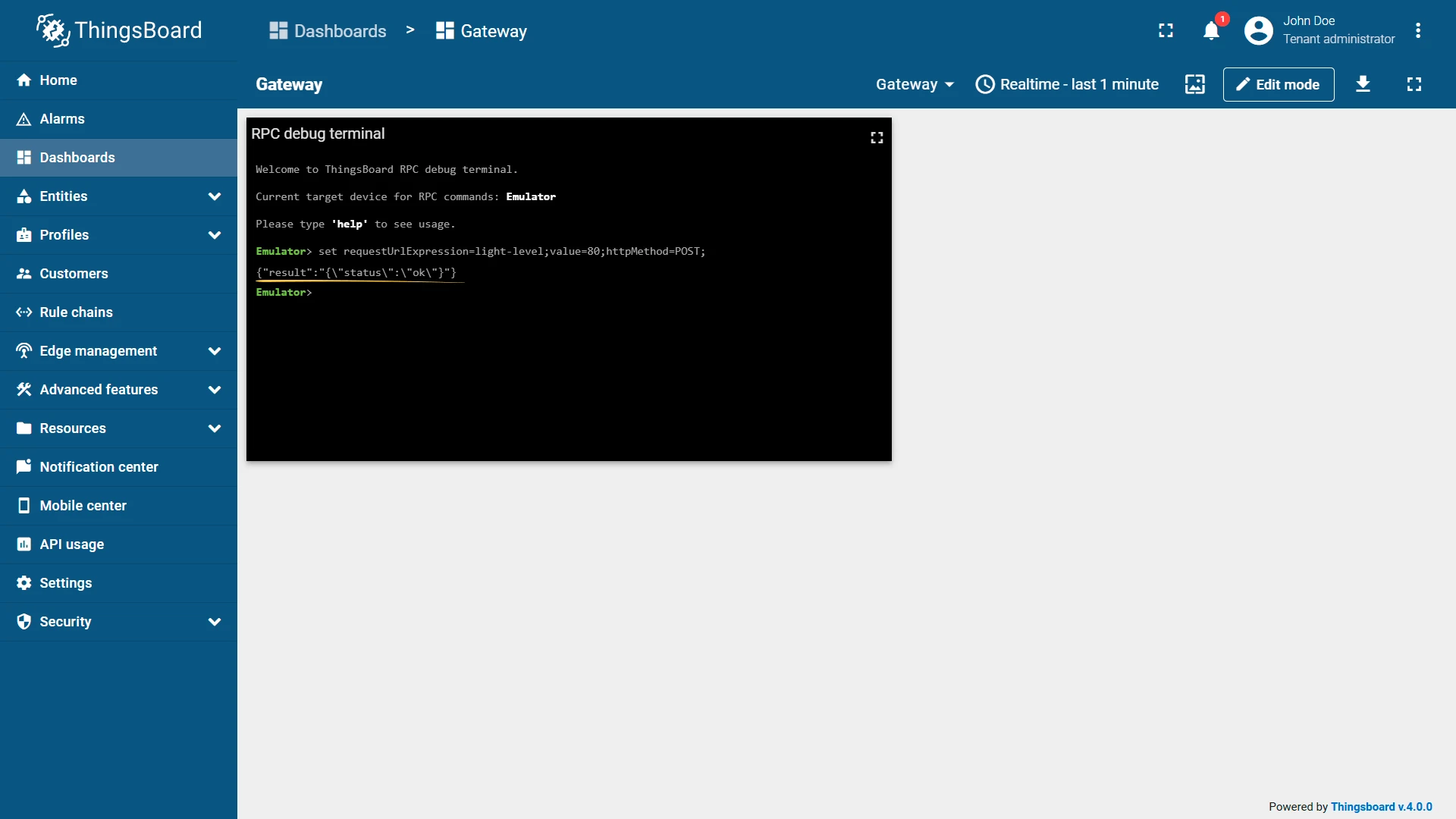
Verify with GET:
get requestUrlExpression=light-level;Response:
{"result": {"light-level": 80}}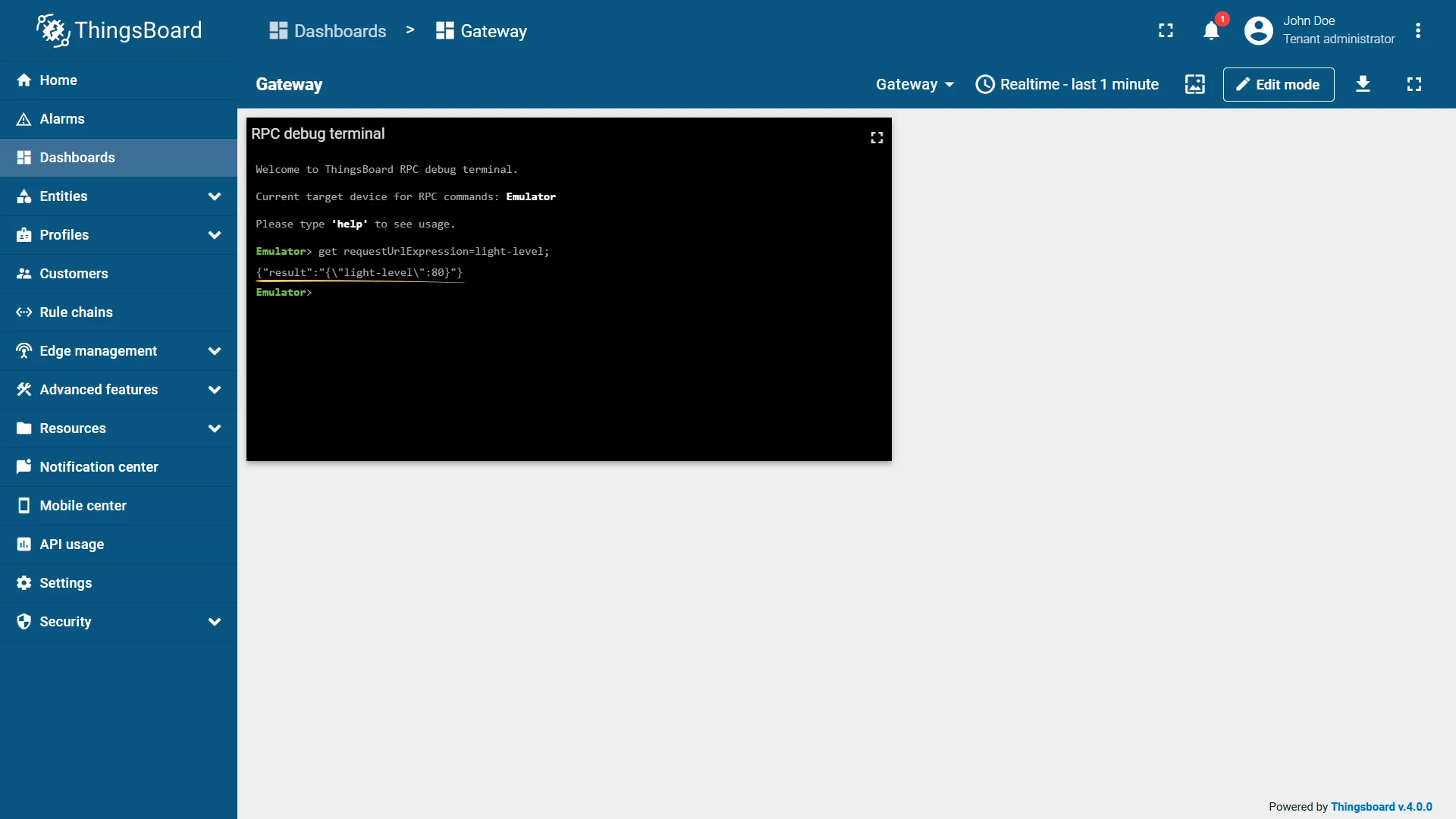
Read a file from the FTP server:
get filePath=<filePath>;| Parameter | Description |
|---|---|
filePath | Path to the file on the FTP server |
Example — read light_level.txt:
get filePath=./light_level.txt;Response:
{"result": 30}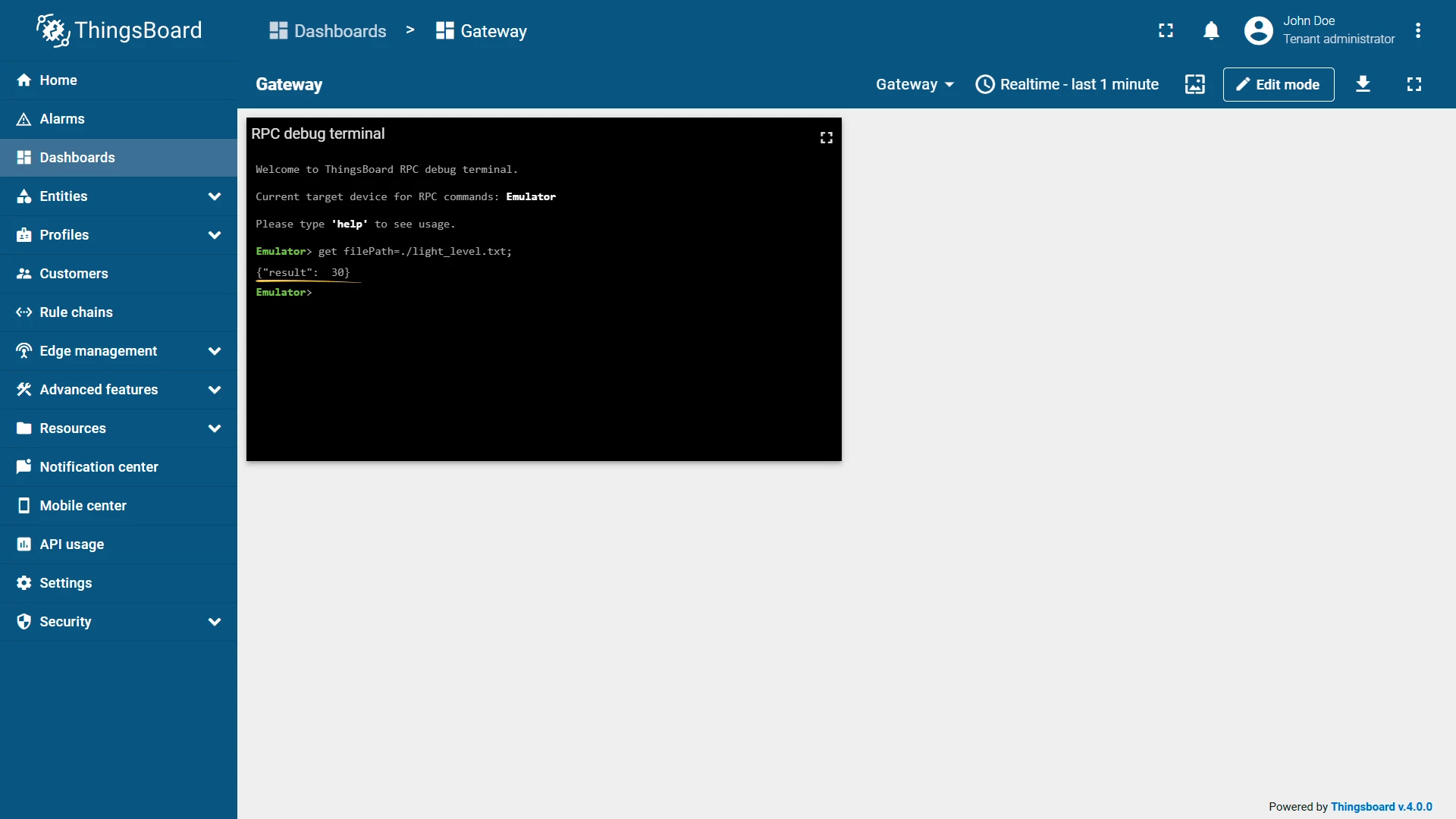
Write a value to a file on the FTP server:
set filePath=<filePath>;value=<value>;| Parameter | Description |
|---|---|
filePath | Path to the file on the FTP server |
value | Value to write |
Example — update light_level.txt to 80:
set filePath=./light_level.txt;value=80;Response:
{"result": "{\"success\": true}"}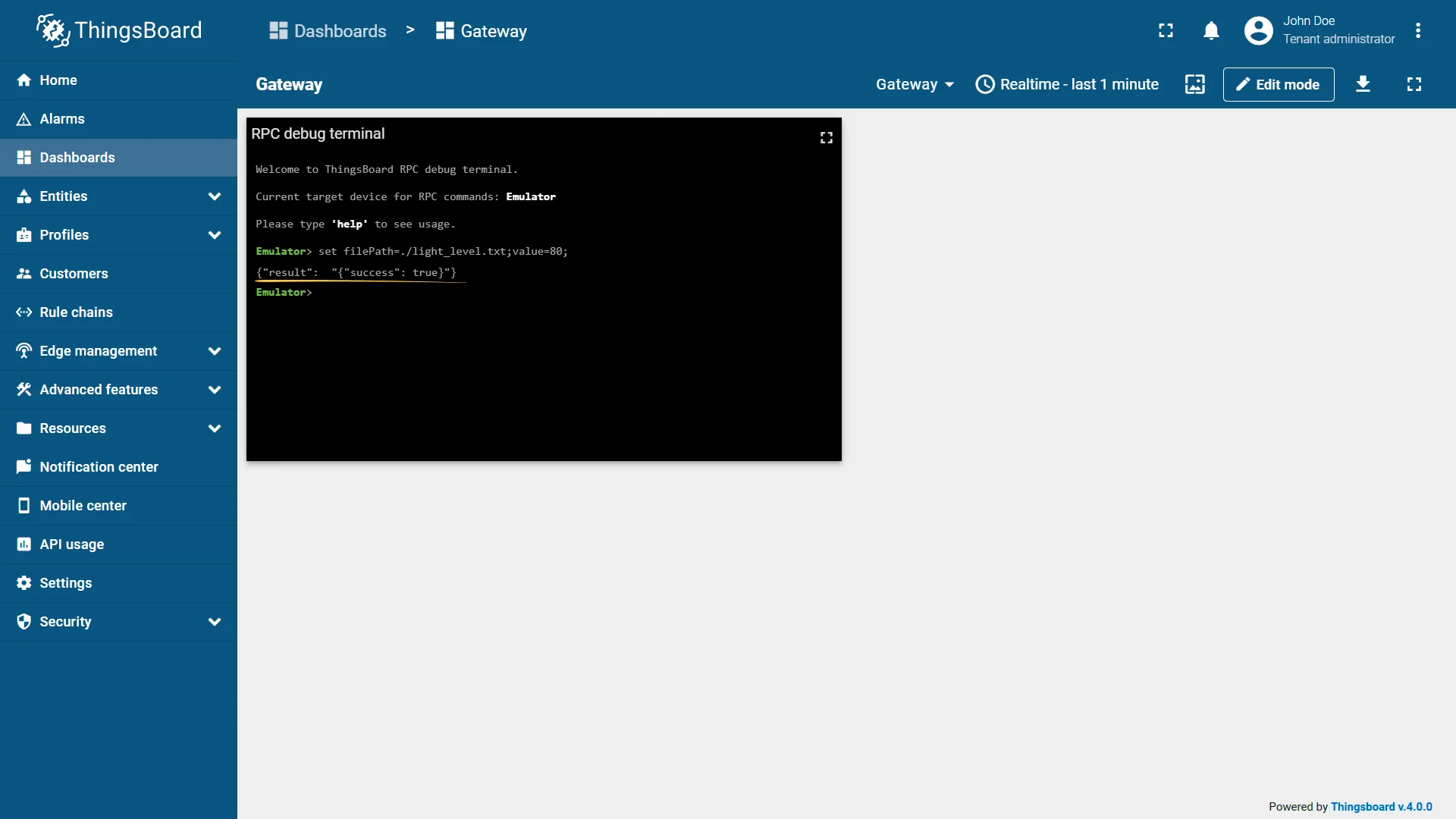
Verify with GET:
get filePath=./light_level.txt;Response:
{"result": 80}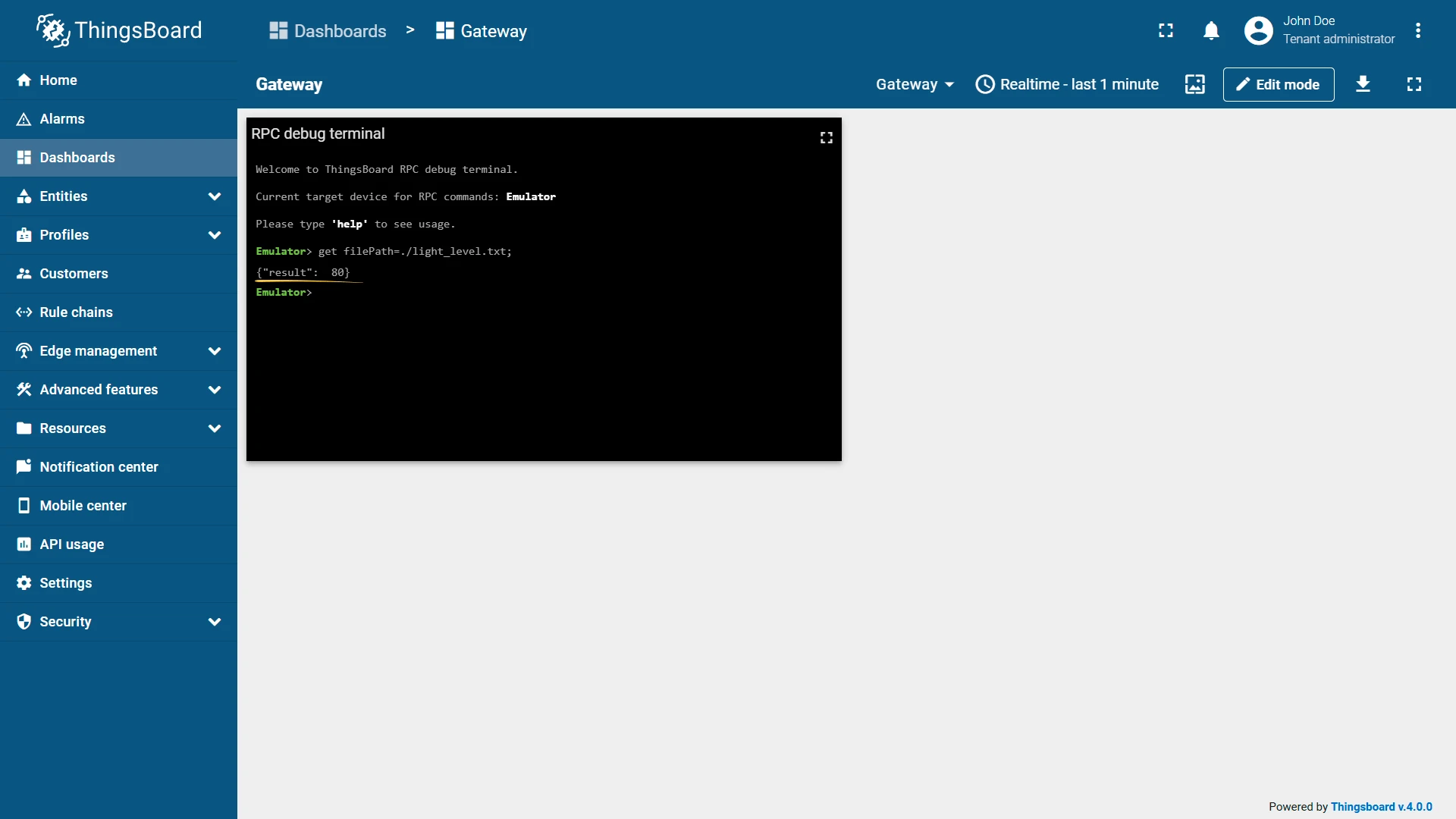
Which variables are readable or writable depends entirely on what the Charge Point’s Device Model
implements — not every Charge Point exposes every variable, and a request can come back as
Rejected, UnknownComponent, or UnknownVariable instead of Accepted.
Read the current value of an OCPP variable:
get component=<component>;variable=<variable>| Parameter | Description |
|---|---|
component | OCPP component name the variable belongs to |
variable | OCPP variable name to read |
componentInstance | Instance name, if the component has multiple instances (optional) |
variableInstance | Instance name, if the variable has multiple instances (optional) |
evseId | EVSE id, if the component is scoped to a specific EVSE (optional) |
timeout | Seconds to wait for the Charge Point’s response (optional, default 5) |
Example — read the Charging Station’s availability state:
get component=ChargingStation;variable=AvailabilityState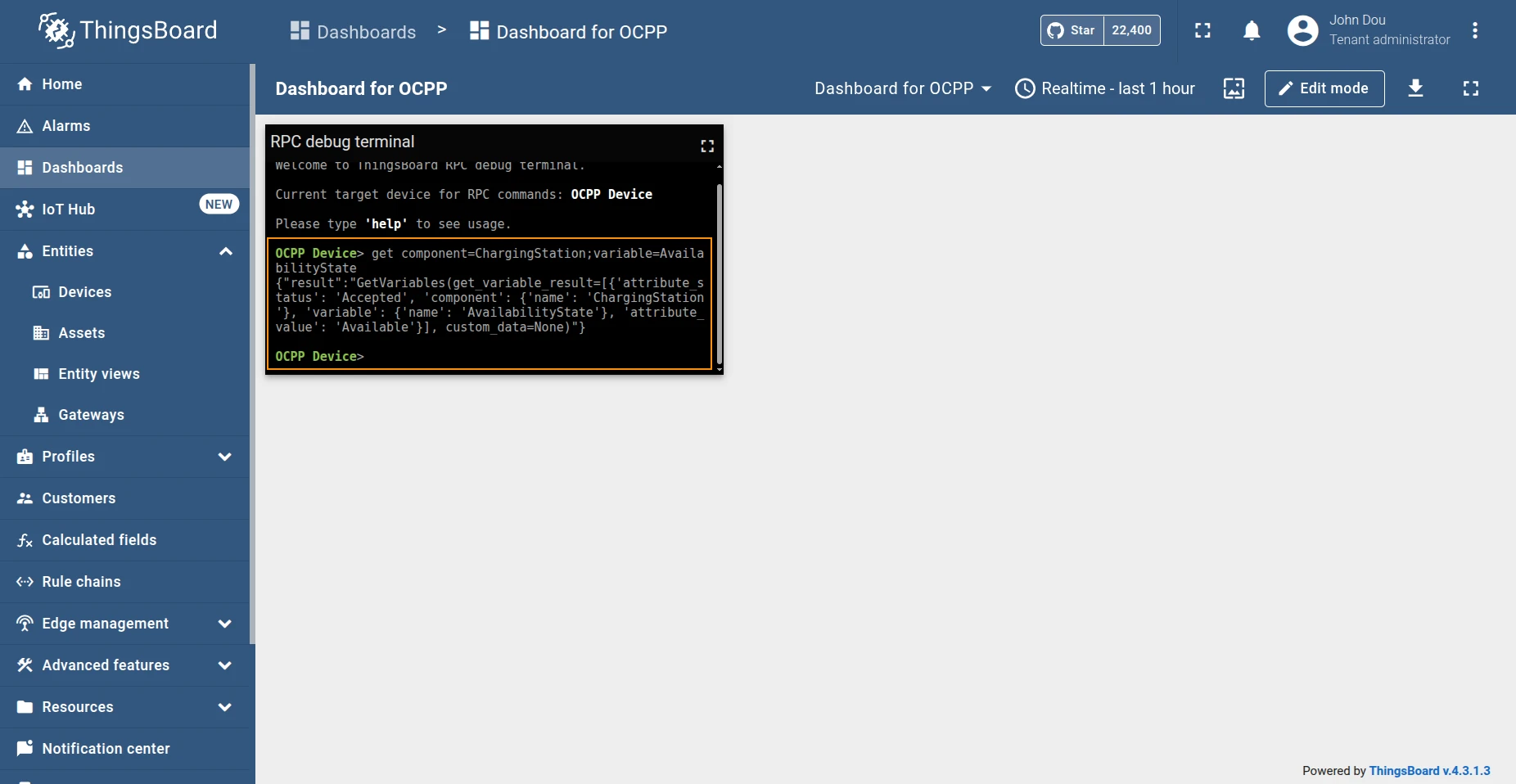
Write a new value to an OCPP variable:
set component=<component>;variable=<variable>;value=<value>| Parameter | Description |
|---|---|
component | OCPP component name the variable belongs to |
variable | OCPP variable name to write |
value | New value to set |
componentInstance | Instance name, if the component has multiple instances (optional) |
variableInstance | Instance name, if the variable has multiple instances (optional) |
evseId | EVSE id, if the component is scoped to a specific EVSE (optional) |
timeout | Seconds to wait for the Charge Point’s response (optional, default 5) |
Example — set the Charging Station’s availability state to unavailable:
set component=ChargingStation;variable=AvailabilityState;value=Unavailable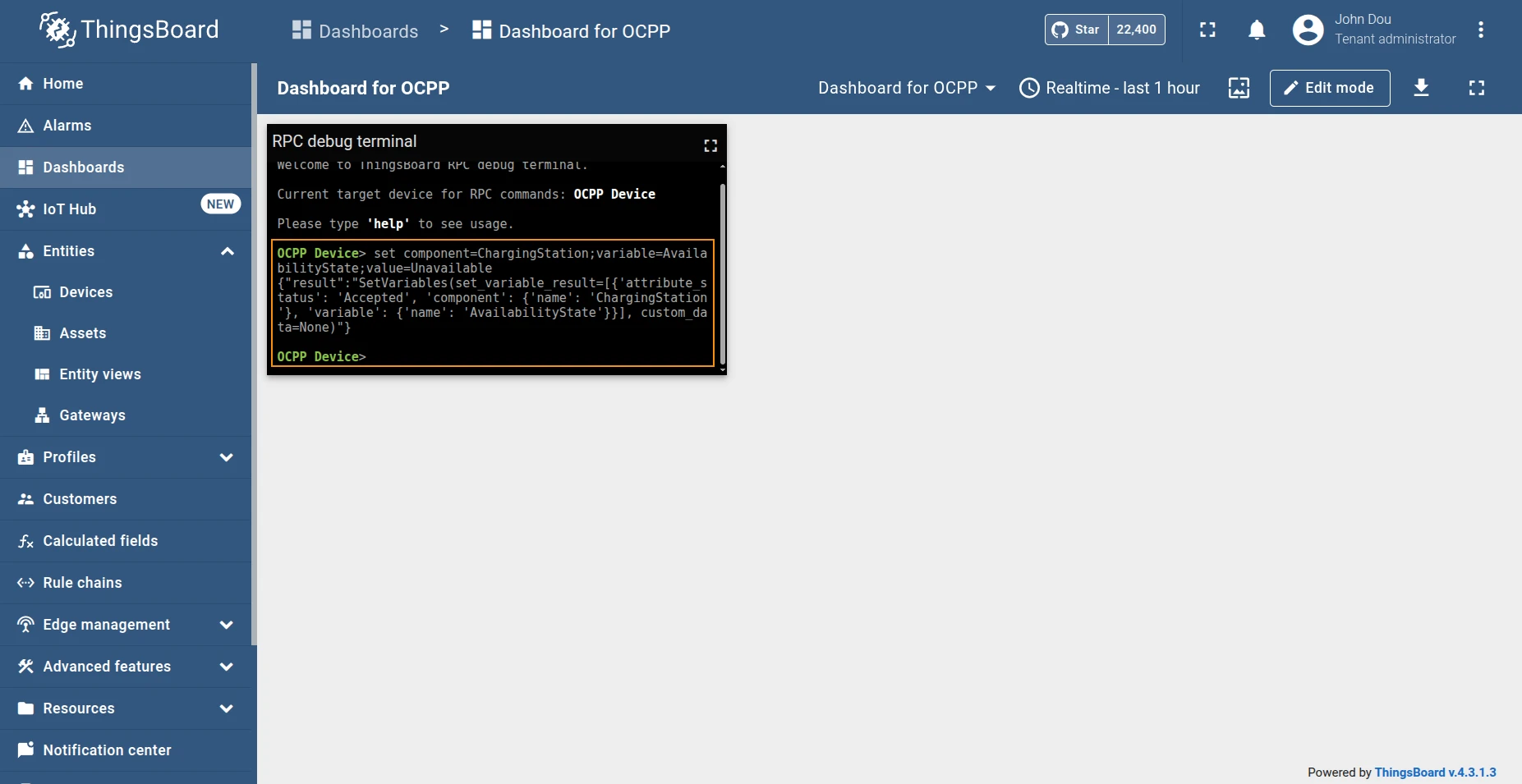
Verify with GET:
get component=ChargingStation;variable=AvailabilityState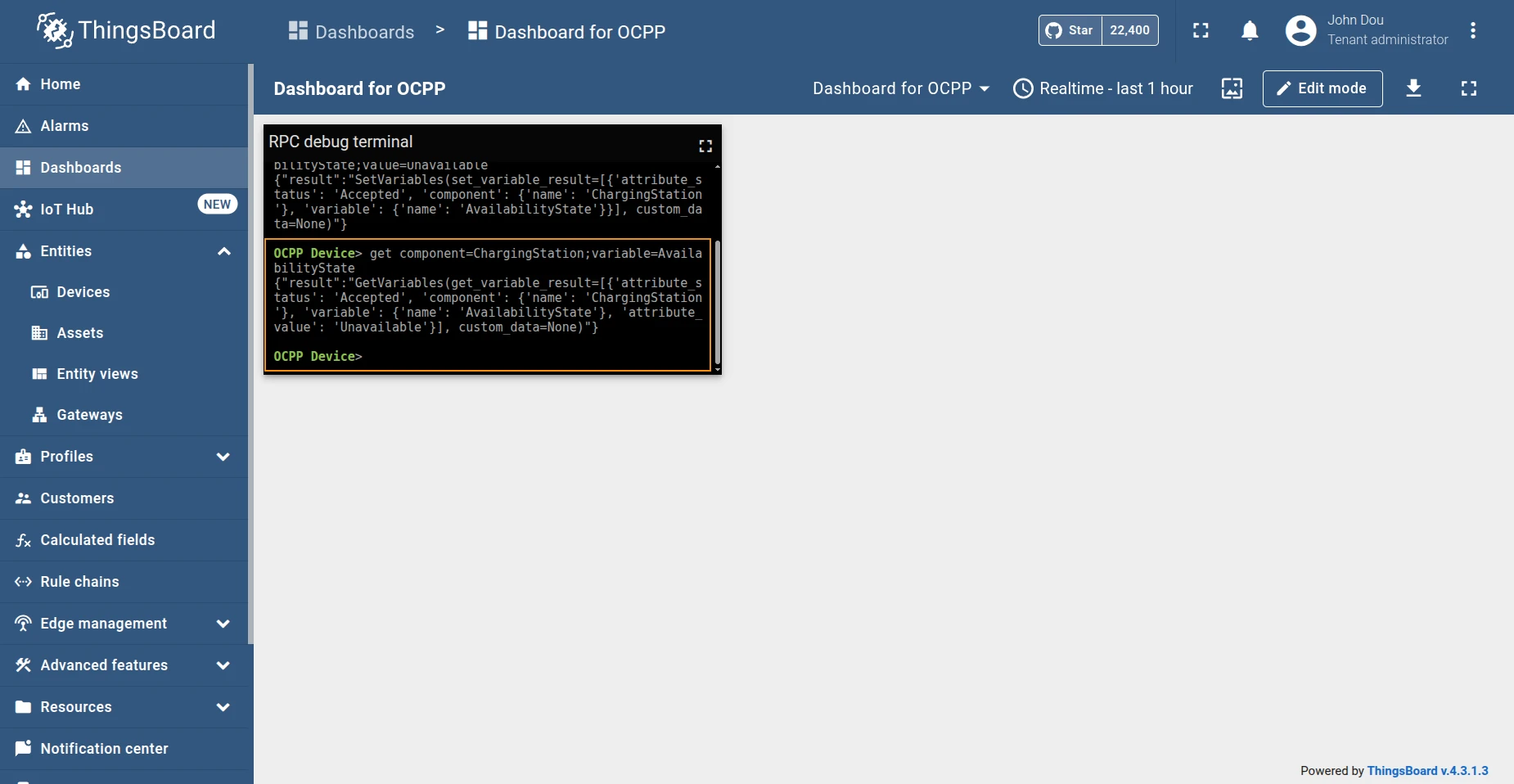
The Socket connector supports only the SET method — sending data to a TCP socket endpoint.
Send data to a TCP socket:
set address=<address>;port=<port>;value=<value>;| Parameter | Description |
|---|---|
address | IP address of the socket target |
port | TCP port of the socket target |
value | Value to send |
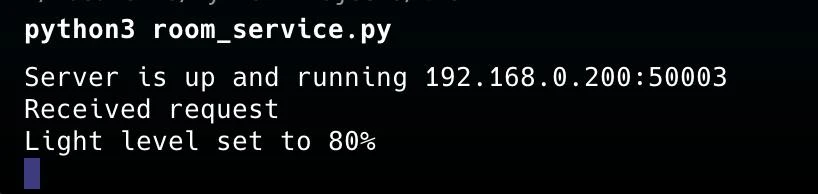
Example — send a light level of 80 to a sensor listening on 192.168.0.200:50003:
set address=192.168.0.200;port=50003;value=80;Response:
{"result": "ok"}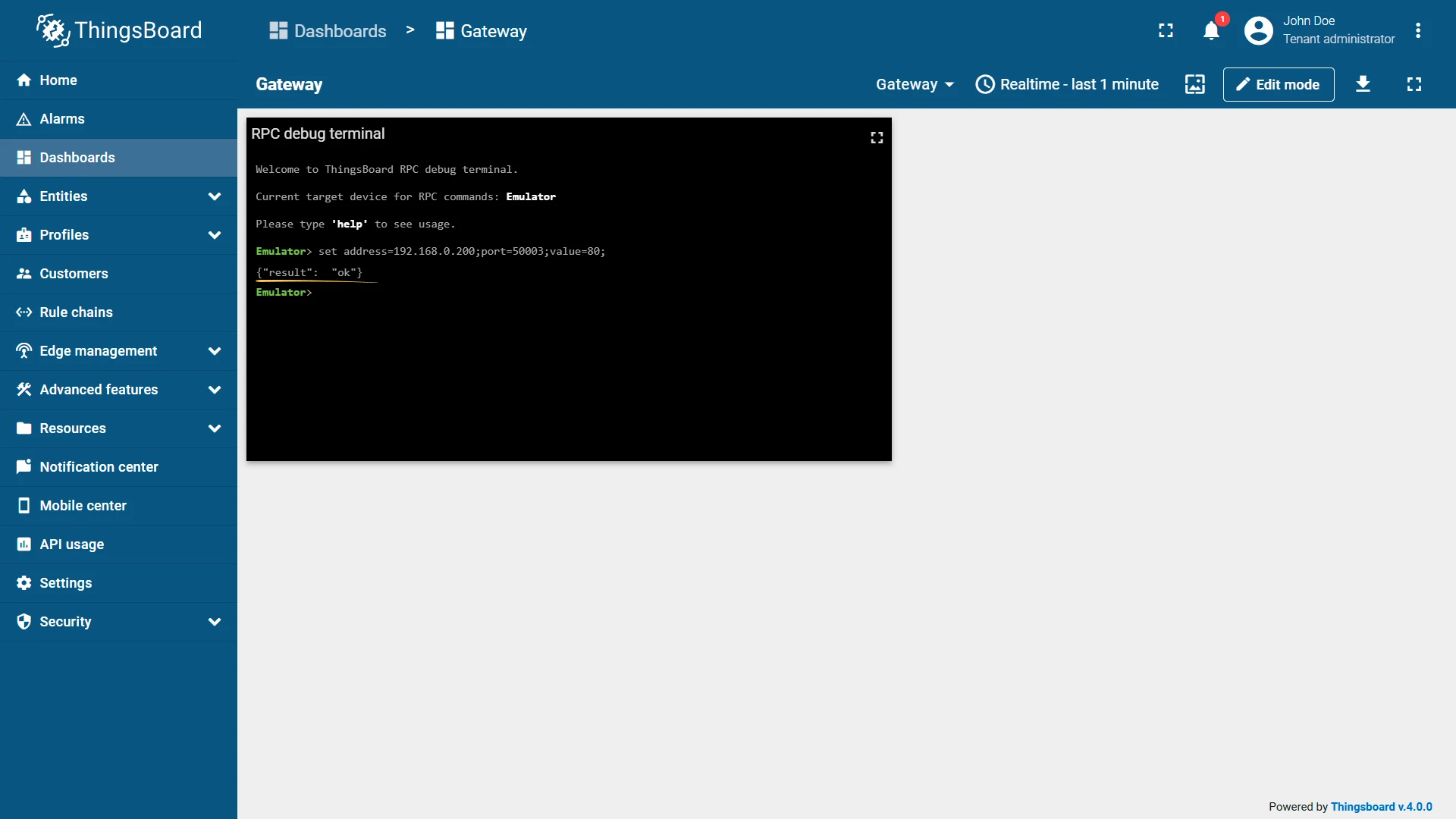
Was this helpful?