
Right Tee Pipe
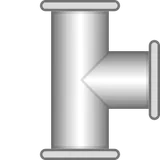
The Right tee pipe widget represents a T-shaped pipe junction with a right branch in a SCADA fluid system diagram. It independently controls fluid presence, flow state, and direction for its three arms: right, top, and bottom.
Key capabilities
Section titled “Key capabilities”- Control fluid presence, flow state, and direction independently for each arm.
- Animate fluid flow per arm at configurable speed.
- Indicate leak conditions at the junction.
- Apply custom fluid colors per arm.
- Receive state data from device attributes, time series, alarm status, or dashboard state.
Add the widget
Section titled “Add the widget”- Open the dashboard and switch to edit mode.
- Click Add widget at the top, or the Add new widget icon in the center of the screen.
- Open the Traditional SCADA fluid system widget bundle.
- Select the pipe fitting widget for your use case.
- Configure the widget settings, then click Add.
Target device
Section titled “Target device”The widget connects to a single data source: either a Device or an Entity alias that resolves to a device. This device provides the telemetry or attribute values used to drive the widget’s visual state.
SCADA symbol
Section titled “SCADA symbol”The SCADA symbol defines the visual shape of the widget. Each junction pipe widget has a pre-selected symbol from the Traditional SCADA fluid system bundle. To use a different symbol, click Browse SCADA symbol from gallery and choose one from the library, or upload your own.
Behavior
Section titled “Behavior”Behavior parameters are organized by pipe arm. Each arm is configured independently, allowing different fluid state data sources for each direction. See Data source configuration for the full list of available actions.
Right pipe
Section titled “Right pipe”| Parameter | Default | Description |
|---|---|---|
| Fluid presence | Absent | Whether fluid is present in the right arm. See Data source configuration. |
| Flow presence | Absent | Whether fluid is flowing in the right arm. See Data source configuration. |
| Flow direction | Forward | Direction of the fluid flow animation in the right arm. See Data source configuration. |
| Flow animation speed | 1 | Animation speed. 1 is normal speed, 0 disables animation, < 1 slower, > 1 faster. See Data source configuration. |
Top pipe
Section titled “Top pipe”| Parameter | Default | Description |
|---|---|---|
| Fluid presence | Absent | Whether fluid is present in the top arm. See Data source configuration. |
| Flow presence | Absent | Whether fluid is flowing in the top arm. See Data source configuration. |
| Flow direction | Forward | Direction of the fluid flow animation in the top arm. See Data source configuration. |
| Flow animation speed | 1 | Animation speed. 1 is normal speed, 0 disables animation, < 1 slower, > 1 faster. See Data source configuration. |
Bottom pipe
Section titled “Bottom pipe”| Parameter | Default | Description |
|---|---|---|
| Fluid presence | Absent | Whether fluid is present in the bottom arm. See Data source configuration. |
| Flow presence | Absent | Whether fluid is flowing in the bottom arm. See Data source configuration. |
| Flow direction | Forward | Direction of the fluid flow animation in the bottom arm. See Data source configuration. |
| Flow animation speed | 1 | Animation speed. 1 is normal speed, 0 disables animation, < 1 slower, > 1 faster. See Data source configuration. |
| Parameter | Default | Description |
|---|---|---|
| Leak | False | Whether a leak is present at the junction. See Data source configuration. |
Data source configuration
Section titled “Data source configuration”Applies to all parameters across all arms. Click the edit icon next to a parameter to open its configuration dialog. When Action is set to Do nothing, the Value options depend on which parameter you are configuring:
| Parameter | Value |
|---|---|
| Fluid presence | Present or Absent |
| Flow presence | Present or Absent |
| Flow direction | Forward or Reverse |
| Flow animation speed | Any number — 1 for normal speed, 0 to stop, < 1 slower, > 1 faster. |
| Leak | True or False |
For all other actions, the configuration dialog works the same way regardless of which parameter you are editing:
-
Execute RPC
Read the parameter value from an RPC response.
Parameter Description Method RPC method to call, like getStateorgetFlowStatus.Action result converter None — parameter is activated when the result matches the value you specify; Function — parameter is activated when your f(data)returnstrue.’[parameter]’ when result is The value or condition that activates this parameter. RPC request timeout (ms) How long to wait for a device response before timing out (Advanced settings). RPC request persistent Stores and retries the command until the device comes online (Advanced settings). -
Get attribute
Read the parameter value from a device attribute.
Parameter Description Attribute scope Where the attribute is stored: Any, Client, Server, or Shared. Attribute key Attribute name to read, like stateorflowActive.Action result converter None — parameter is activated when the attribute equals the value you specify; Function — parameter is activated when your f(data)returnstrue.’[parameter]’ when result is The value or condition that activates this parameter. -
Get time series
Read the parameter value from the latest telemetry reading.
Parameter Description Time series key Telemetry key to monitor, like flowStateorleakSensor.Action result converter None — parameter is activated when the telemetry value equals what you specify; Function — parameter is activated when your f(data)returnstrue.’[parameter]’ when result is The value or condition that activates this parameter. -
Get alarm status
Activate the parameter when a specific alarm is active on the device.
Parameter Description Alarm severity Which severity levels trigger the active state: Critical, Major, Minor, Warning, or Indeterminate. Alarm types Any alarm, or a specific alarm type. -
Get dashboard state id
Activate the parameter based on which dashboard state is currently open.
Parameter Description Action result converter None — parameter is activated when the state name matches the text you enter; Function — parameter is activated when your f(data)returnstrue.’[parameter]’ when result is The state name or condition that activates this parameter. -
Get dashboard state object
Activate the parameter using the full dashboard state context; use this when you need to evaluate multiple state parameters at once.
Parameter Description Parse value function A f(data)function that receives the current dashboard state object. Usedata.idto read the active state name, ordata.paramsto inspect state parameters.’[parameter]’ when result is The expected type and value that activates the parameter. Choose String, Integer, Double, Boolean (then select True or False), or JSON.
Appearance
Section titled “Appearance”The Appearance section controls the widget title and per-arm fluid colors.
| Setting | Description |
|---|---|
| Title | Widget title displayed in the header. Supports entityName and entityLabel variables. |
| Card icon | Icon shown in the widget header. Configure its size and color. |
| Right fluid color | Color of the fluid in the right arm. |
| Top fluid color | Color of the fluid in the top arm. |
| Bottom fluid color | Color of the fluid in the bottom arm. |
| Pipe color | Color of the pipe structure itself. |
Card appearance
Section titled “Card appearance”The Card appearance section controls the widget container style.
| Setting | Default | Description |
|---|---|---|
| Background | Transparent | Card background color. |
| Show card buttons | Fullscreen | Buttons shown on the card when hovered. |
| Card border radius | 0px | Rounding of card corners. |
| Card padding | 12px | Inner spacing between the card edge and widget content. |
Troubleshooting
Section titled “Troubleshooting”One or more arms show no fluid state or incorrect state
| Cause | Solution |
|---|---|
| Action is set to Do nothing for that arm | Open the arm’s parameter edit dialog, set the correct Action, and specify the attribute or time-series key. |
| Attribute or telemetry key mismatch | Verify that the key name matches exactly what the device reports. |
| Target device is not connected | Confirm that the selected device is online and actively sending data. |
Flow animation does not play on an arm
| Cause | Solution |
|---|---|
Flow animation speed is 0 | Set a non-zero value (e.g. 1 for normal speed). |
Flow presence is Absent | Configure Flow presence to read from the device and verify the device reports an active flow state for that arm. |
Solution templates
Section titled “Solution templates”These widgets are used in the following ready-made solution templates built on the Traditional SCADA fluid system bundle:
- SCADA Swimming pool — a complete swimming pool monitoring dashboard built with pipe, pump, valve, and gauge widgets from the Traditional SCADA fluid system bundle.
Was this helpful?