
Apache Pulsar Integration
Apache Pulsar Integration connects ThingsBoard to an Apache Pulsar cluster. ThingsBoard subscribes to a Pulsar topic, consumes incoming messages, and decodes them via an uplink converter into device telemetry and attributes.
Prerequisites
Section titled “Prerequisites”Before creating the integration, prepare the following:
- A running Pulsar broker. Use a local Docker installation or a managed service such as StreamNative Cloud.
- A topic to consume from.
- A security token if your broker requires authentication.
Create Apache Pulsar Uplink Data Converter
Section titled “Create Apache Pulsar Uplink Data Converter”The uplink converter decodes incoming Pulsar messages and maps them to the ThingsBoard data model. Apache Pulsar uses a generic uplink converter.
The decoder function receives:
payload— raw Pulsar message body as a UTF-8 byte arraymetadata—integrationNameand any key-value pairs configured in the integration’s Metadata settings
Sample payload:
{ "deviceName": "Sensor A1", "deviceType": "thermostat", "temperature": 23.5, "humidity": 60}- Go to Integrations center ⇾ Data converters.
- Click + Add data converter ⇾ Create new converter.
In the Add data converter dialog:
- Converter type — leave Uplink (selected by default).
- Integration type — in the search field, enter
Apache Pulsarand select Apache Pulsar from the list. - Name — enter a converter name, for example
Apache Pulsar Uplink Converter. - Main decoding configuration — paste the decoder function from the appropriate tab below, then continue with step 7.
The decoder function used in this tutorial:
// Decode an uplink message from a buffer// payload - array of bytes// metadata - key/value object
/** Decoder **/
var data = decodeToJson(payload);
var deviceName = data.deviceName != null ? data.deviceName : 'Unknown Device';var deviceType = data.deviceType != null ? data.deviceType : 'default';
// Timestamp: use ts (Unix ms), timestamp (ISO 8601), or server timevar timestamp = -1;if (data.ts != null) {  timestamp = data.ts;} else if (data.timestamp != null) {  timestamp = new Date(data.timestamp).getTime();}if (timestamp == -1) { timestamp = Date.now(); }
var telemetry = {};var attributes = {  integrationName: metadata['integrationName']};
var excludeFromTelemetryList = ["deviceName", "deviceType", "ts", "timestamp"];telemetry.putAll(toFlatMap(data, excludeFromTelemetryList, true));
var result = {  deviceName: deviceName,  deviceType: deviceType,  attributes: attributes,  telemetry: { ts: timestamp, values: telemetry }};
/** Helper functions 'decodeToString', 'decodeToJson' and 'toFlatMap' are already built-in **/
return result;// Decode an uplink message from a buffer// payload - array of bytes// metadata - key/value object
/** Decoder **/
var data = decodeToJson(payload);
var deviceName = data.deviceName != null ? data.deviceName : 'Unknown Device';var deviceType = data.deviceType != null ? data.deviceType : 'default';
var timestamp = -1;if (data.ts != null) { timestamp = data.ts;} else if (data.timestamp != null) { timestamp = new Date(data.timestamp).getTime();}if (timestamp == -1) { timestamp = Date.now(); }
var telemetry = {};var attributes = { integrationName: metadata['integrationName']};
var excludeFromTelemetryList = ["deviceName", "deviceType", "ts", "timestamp"];toFlatMap(data, telemetry, excludeFromTelemetryList);
var result = { deviceName: deviceName, deviceType: deviceType, attributes: attributes, telemetry: { ts: timestamp, values: telemetry }};
/** Helper functions **/
function decodeToString(payload) { return String.fromCharCode.apply(String, payload);}
function decodeToJson(payload) { return JSON.parse(decodeToString(payload));}
function toFlatMap(obj, result, excludeList, prefix) { prefix = prefix || ''; for (var key in obj) { if (excludeList.indexOf(key) !== -1) continue; var value = obj[key]; var fullKey = prefix ? prefix + '.' + key : key; if (typeof value === 'object' && value !== null && !Array.isArray(value)) { toFlatMap(value, result, excludeList, fullKey); } else { result[fullKey] = value; } }}
return result;- Optionally, click Test payload decoder to validate the script against a sample payload.
- Click Add.
To adapt this converter to your device:
- Different device name / type fields — replace
data.deviceNameanddata.deviceTypewith the field names your device sends. - Timestamp — name the field
tsfor Unix milliseconds ortimestampfor ISO 8601. Without either, the converter falls back to server receive time. - Telemetry fields — all JSON fields not in
excludeFromTelemetryListare mapped to telemetry automatically. Add field names to the list to exclude them. - Static attributes — add device properties (e.g. firmware version, location) to the
attributesobject. - Assets instead of devices — use
assetName/assetTypeinstead ofdeviceName/deviceType.
Create Apache Pulsar Integration
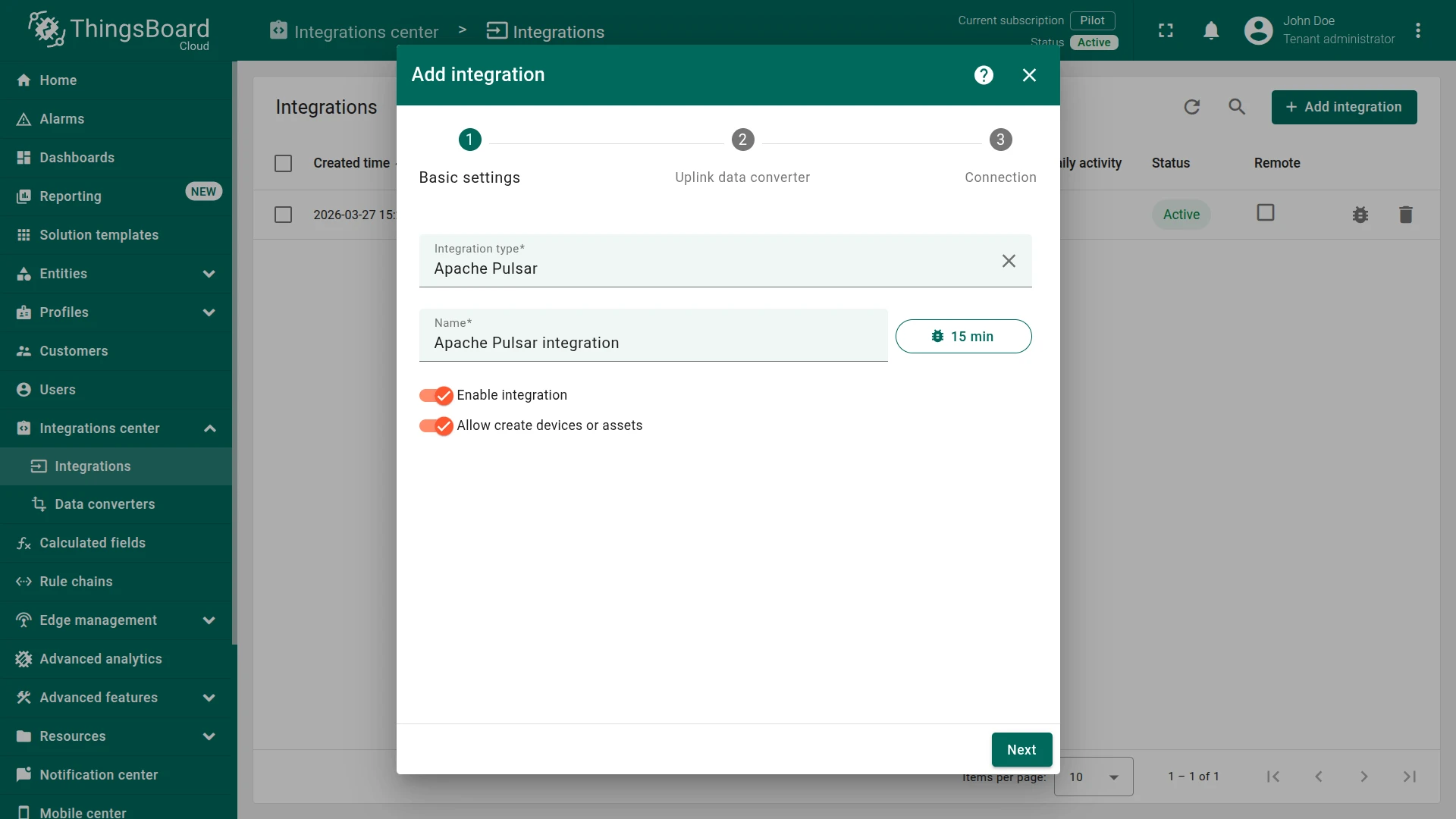
Section titled “Create Apache Pulsar Integration”- Go to Integrations center ⇾ Integrations and click + Add integration.
- Basic settings:
- Set Integration type to Apache Pulsar and enter a name (e.g.
Apache Pulsar Integration). - Leave Enable integration and Allow create devices or assets on so the device is created automatically on first data.
- Click Next.
- Set Integration type to Apache Pulsar and enter a name (e.g.
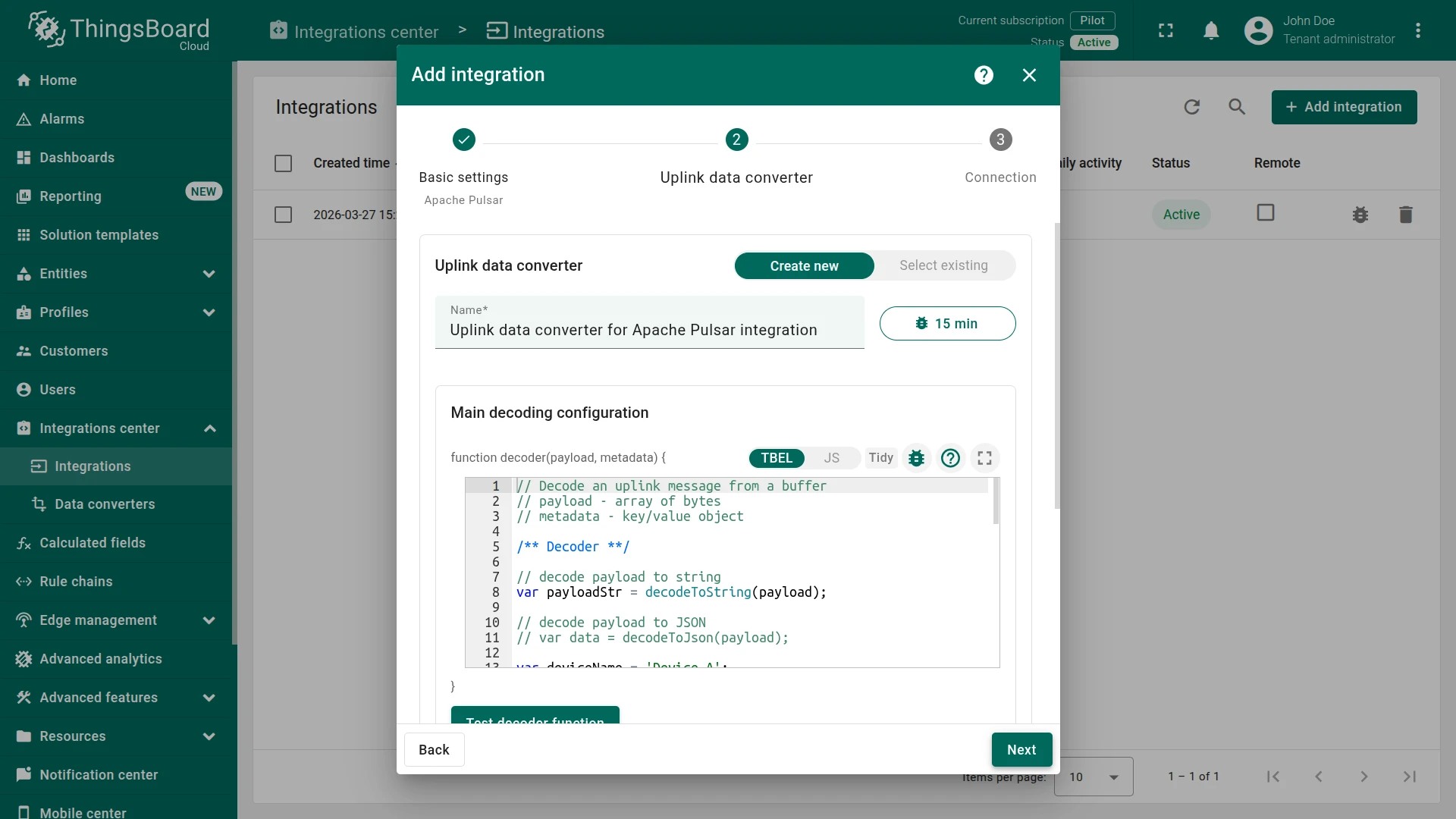
- Uplink data converter:
- Click Select existing and choose the Apache Pulsar Uplink Converter created in the previous step, or click Create new to define the decoder inline.
- Click Next.
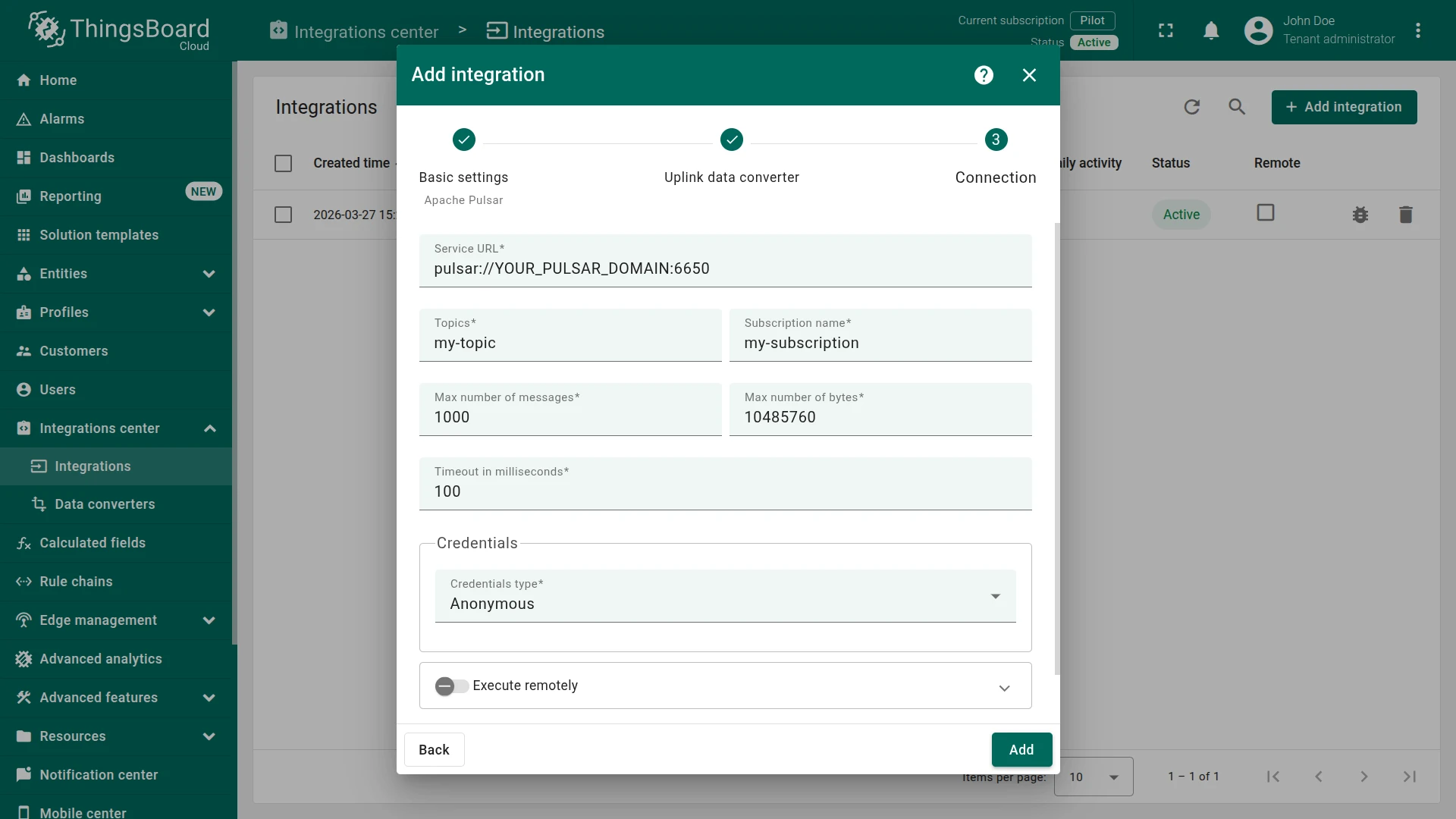
- Connection:
- Fill in Service URL, Topic, Subscription name, and the remaining parameters.
- Select Credentials type and provide a token if required.
- See Connection settings for a full description.
- Click Add to save the integration.
Connection settings
Section titled “Connection settings”Service URL
The Pulsar broker endpoint. Use pulsar:// for plain connections (default port 6650) and pulsar+ssl:// for TLS-encrypted connections (default port 6651).
Examples:
- Plain:
pulsar://YOUR_PULSAR_DOMAIN:6650 - TLS / managed:
pulsar+ssl://broker.example.com:6651
Topic
The Pulsar topic to consume messages from (e.g. my-topic). Pulsar topics follow the format {persistent|non-persistent}://{tenant}/{namespace}/{topic-name}. The broker resolves a short name like my-topic to persistent://public/default/my-topic on a standalone instance.
Subscription name
A string identifier for this consumer subscription (e.g. my-subscription). The subscription tracks the last acknowledged message offset and resumes from the same position after a restart. Use a consistent name across integration restarts.
Max number of messages
Maximum number of messages to fetch in a single poll. Default: 1000.
Max number of bytes
Maximum total payload size to fetch per poll, in bytes. Default: 10485760 (10 MB).
Timeout in milliseconds
Consumer receive timeout — how long the client waits for a message before returning an empty result. Default: 100.
Credentials type
| Option | Description |
|---|---|
| Anonymous | No authentication. Suitable for local or open brokers. |
| Security token | JWT bearer token. Required for StreamNative Cloud and other managed Pulsar services that enforce token authentication. |
Execute remotely
When enabled, ThingsBoard generates an Integration key and Integration secret that allow the integration to run as a separate process outside the ThingsBoard cluster — useful when the broker is only reachable from a restricted network. See Remote Integration.
Test the Integration
Section titled “Test the Integration”After the integration is created, send a test uplink and confirm that ThingsBoard received the message, decoded it correctly, and provisioned the device.
Send Test Uplink
Section titled “Send Test Uplink”Publish a test message to the Pulsar topic using the pulsar-client CLI tool.
If your broker is running in Docker, exec into the container and use the built-in CLI:
docker exec pulsar bash -c 'printf "%s" "{\"deviceName\":\"Sensor A1\",\"deviceType\":\"thermostat\",\"timestamp\":\"2026-04-09T13:25:00Z\",\"temperature\":23.5,\"humidity\":60}" > /tmp/msg.txt && bin/pulsar-client produce my-topic -f /tmp/msg.txt'If your broker is running in Docker and you’re on Windows, run this from PowerShell:
'{"deviceName":"Sensor A1","deviceType":"thermostat","temperature":23.5,"humidity":60}' | docker exec -i pulsar sh -c "cat > /tmp/msg.json && bin/pulsar-client produce my-topic -f /tmp/msg.json"If Pulsar binaries are installed locally:
bin/pulsar-client produce my-topic \ --num-produce 1 \ --messages '{"deviceName":"Sensor A1","deviceType":"thermostat","temperature":23.5,"humidity":60}'For a remote broker, add --url pulsar://your-broker-host:6650.
pip install pulsar-clientimport pulsar, json
client = pulsar.Client('pulsar://localhost:6650')producer = client.create_producer('my-topic')payload = json.dumps({ "deviceName": "Sensor A1", "deviceType": "thermostat", "temperature": 23.5, "humidity": 60})producer.send(payload.encode('utf-8'))client.close()print("Message sent.")Verify Integration Events
Section titled “Verify Integration Events”Go to Integrations center ⇾ Integrations, open Apache Pulsar Integration, and check the Events tab. An Uplink event with Status: OK confirms the message was processed. Click … in the Message column to inspect the raw payload.
Verify Converter Events
Section titled “Verify Converter Events”Go to Integrations center ⇾ Data converters, open the uplink converter, and click the Events tab. Inspect the In (raw payload), Out (decoded result), and Metadata columns to verify the decoder output.
Verify Device Provisioning
Section titled “Verify Device Provisioning”Go to Entities ⇾ Devices. The device Sensor A1 is automatically provisioned on the first message. Open it and check the Latest telemetry tab — temperature and humidity should reflect the published values.
See Also
Section titled “See Also”- Integrations Overview — how ThingsBoard connects to external platforms and how uplink/downlink flow works
- Uplink Data Converter — full decoder function reference: input parameters, output fields, and scripting patterns
- Downlink Data Converter — full encoder function reference: input parameters, output fields, and scripting patterns
- Remote Integration — run the integration outside the ThingsBoard server to reach Apache Pulsar from a private network
- TBEL scripting reference — built-in functions and operators for writing converter scripts
- Rule Engine — how the Root Rule Chain routes shared attribute updates to the downlink converter
Was this helpful?