
Calculated Fields
Calculated fields let you apply statistical functions and custom formulas to your device telemetry directly in Trendz, without modifying any data in ThingsBoard or adding extra load to the database. Results can optionally be written back to ThingsBoard as telemetry for use in dashboards, rule chains, and further analysis.
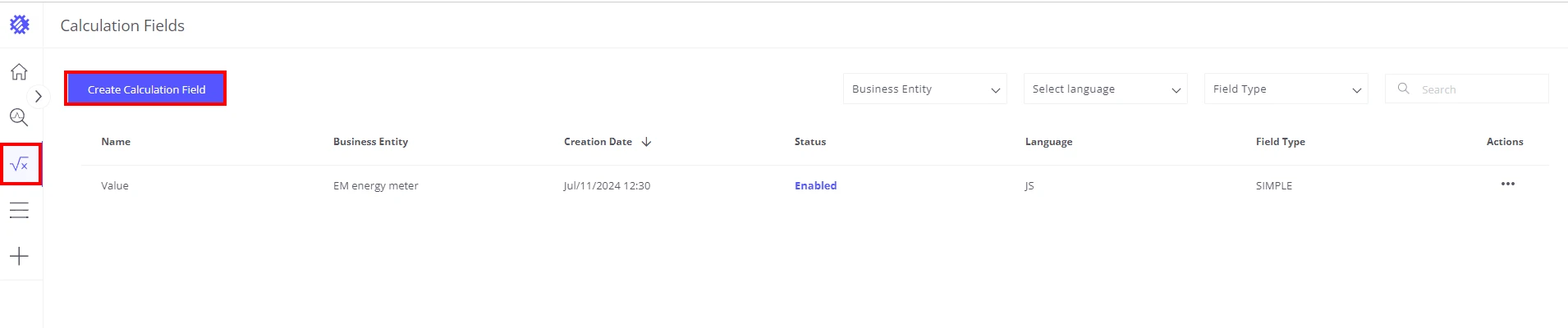
To access the calculated fields tool, click the √x icon labeled Calculation Fields in the left sidebar. The table lists all existing calculated fields. To create a new one, click Create Calculation Field.
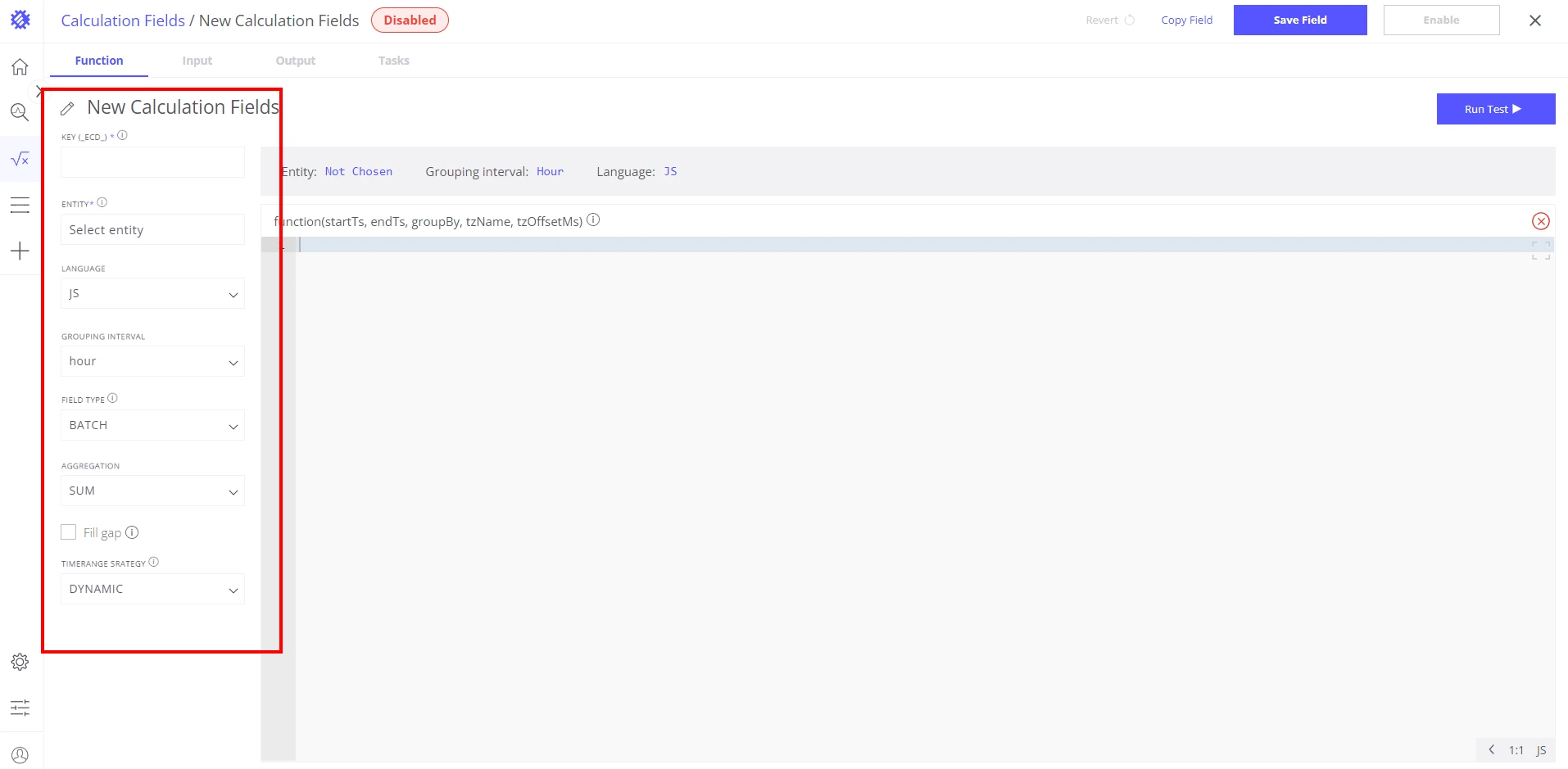
Calculated field editor
Section titled “Calculated field editor”Function tab
Section titled “Function tab”The Function tab defines how the calculation is computed.
| Field | Description |
|---|---|
| KEY | Identifier used when storing the result in ThingsBoard. The _ECD_ prefix is added automatically (e.g. key myField → ThingsBoard telemetry key _ECD_myField). In Trendz views, the field is shown by its display name, not the raw key. Required. |
| ENTITY | Business entity this calculated field is linked to. Determines which data it can access and how it appears in views and filters. Required. |
| LANGUAGE | Scripting language for the calculation: JavaScript (ECMAScript 5.1, default) or Python (3.8+, with NumPy, Pandas, and more pre-installed). You can also install additional Python packages. See Add custom Python libraries. |
| GROUPING INTERVAL | Time bucket for aggregating input data: hour, day, week, or month. |
| FIELD TYPE | Simple — computes one value per time bucket. Batch — receives the full raw telemetry array for custom aggregation. See Batch Calculations. |
| AGGREGATION | Method for summarizing grouped data: AVG, SUM, LATEST, MIN, MAX, COUNT, UNIQ, and others. See Telemetry Aggregation. |
| Fill Gap | How missing telemetry is handled. Configured via TIME UNIT and STRATEGY sub-settings. |
| TIMERANGE STRATEGY | Dynamic — loads data since the last successful calculation. Fixed — uses a predefined time range on each execution. |
Input tab
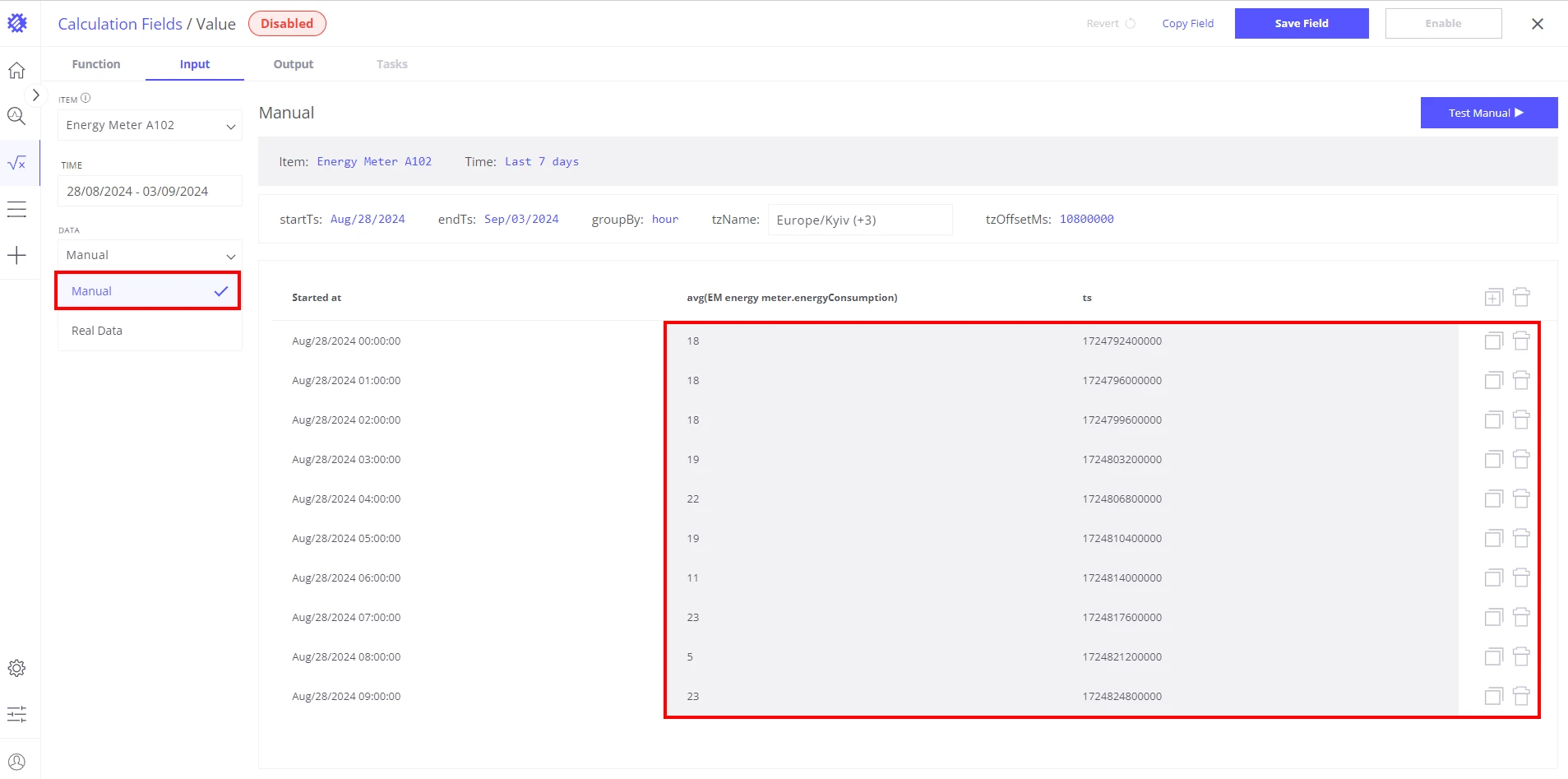
Section titled “Input tab”The Input tab lets you define and inspect the data fed into the calculation.
Data field mode:
- Real Data — shows read-only input values based on the configured parameters.
- Manual — lets you enter test values manually. Manual entries can be edited, copied, or deleted; editable fields have a gray background.
Built-in variables always available in the calculation function:
| Variable | Description |
|---|---|
startTs | Start timestamp of the current calculation period. |
endTs | End timestamp of the current calculation period. |
groupBy | Active grouping interval. |
tzName | Time zone name used for the calculation. |
tzOffsetMs | Time zone offset in milliseconds, used to align data to local time. |
Output tab
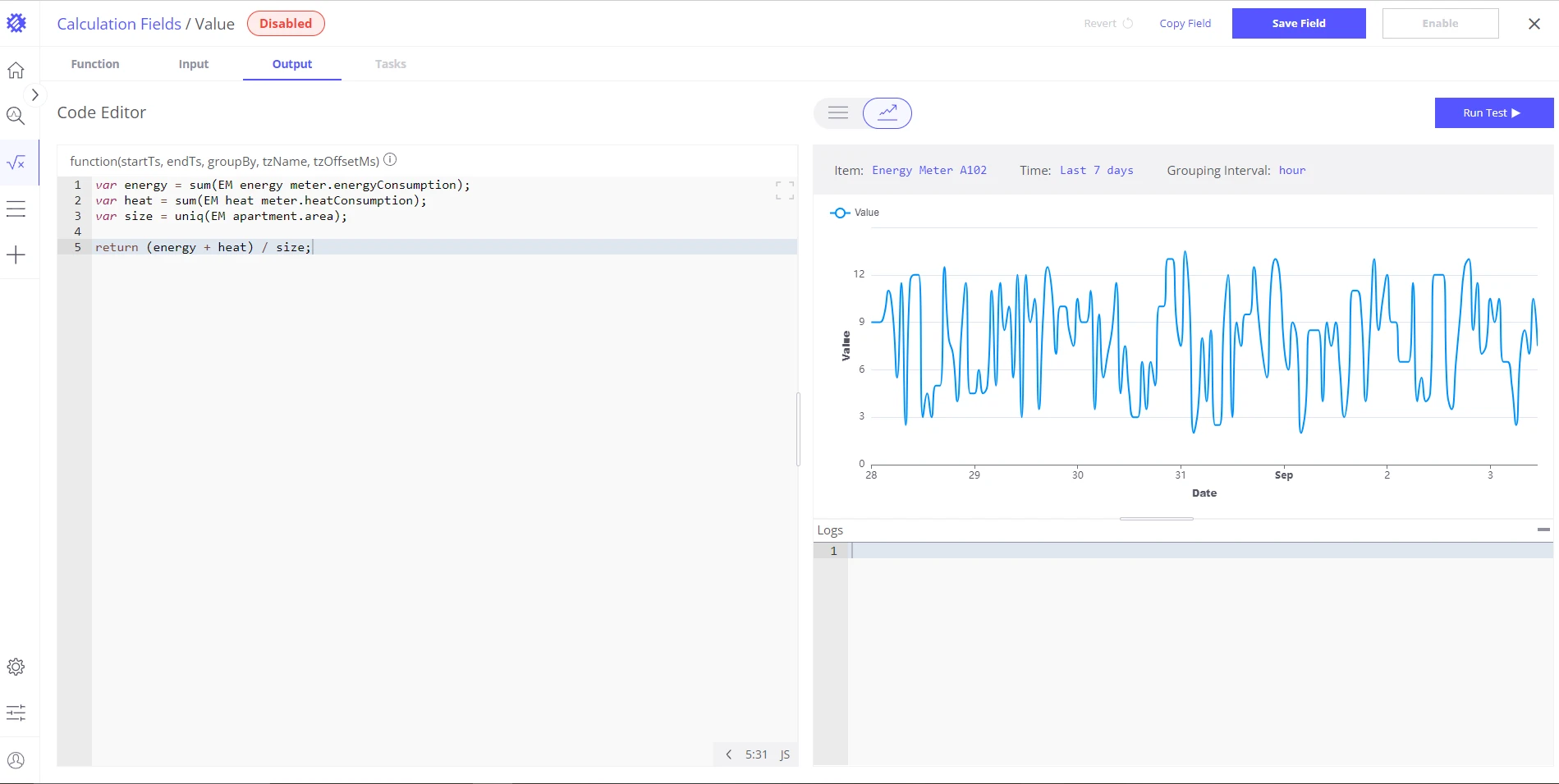
Section titled “Output tab”After clicking Run test, the Output tab shows three views:
| View | Description |
|---|---|
| Function | Shows and lets you modify the calculation function for iterative testing. |
| Output Data | Displays calculation results — simple values or arrays — as a table or line chart. |
| Logs | Shows runtime logs equivalent to browser console output. Useful for debugging. |
Tasks tab
Section titled “Tasks tab”The Tasks tab lists all background jobs created for this calculated field, along with their current status: completed, in progress, or pending.
Jobs are triggered in two situations:
- A calculated field is enabled for the first time — Trendz creates an initial job to compute and store historical results in ThingsBoard.
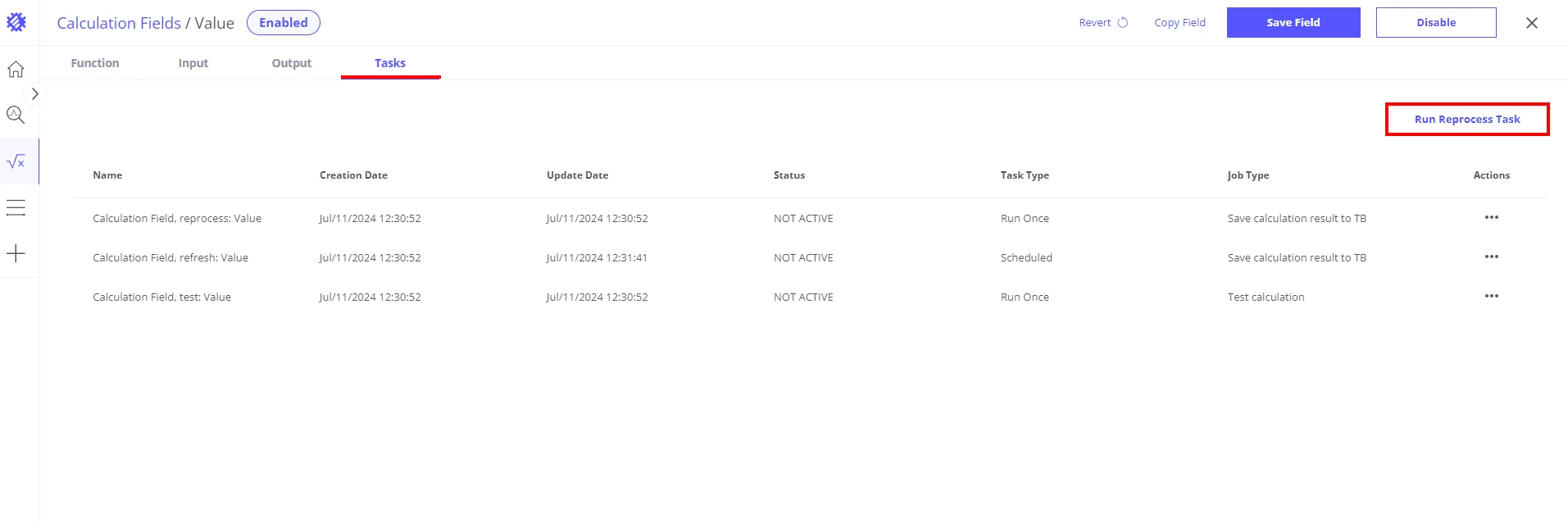
- You modify and re-save an enabled calculation and then manually run a Reprocess Task — a new job applies the updated formula to all historical data.
Without running the Reprocess Task after a change, the updated formula applies only to data recorded after the re-save. Historical values retain the results of the previous formula.
Examples
Section titled “Examples”Simple conversion
Section titled “Simple conversion”Convert boiler temperature from Celsius to Fahrenheit:
var celsius = avg(Machine.boilerTemp);var fahrenheit = celsius * 1.8 + 32;return fahrenheit;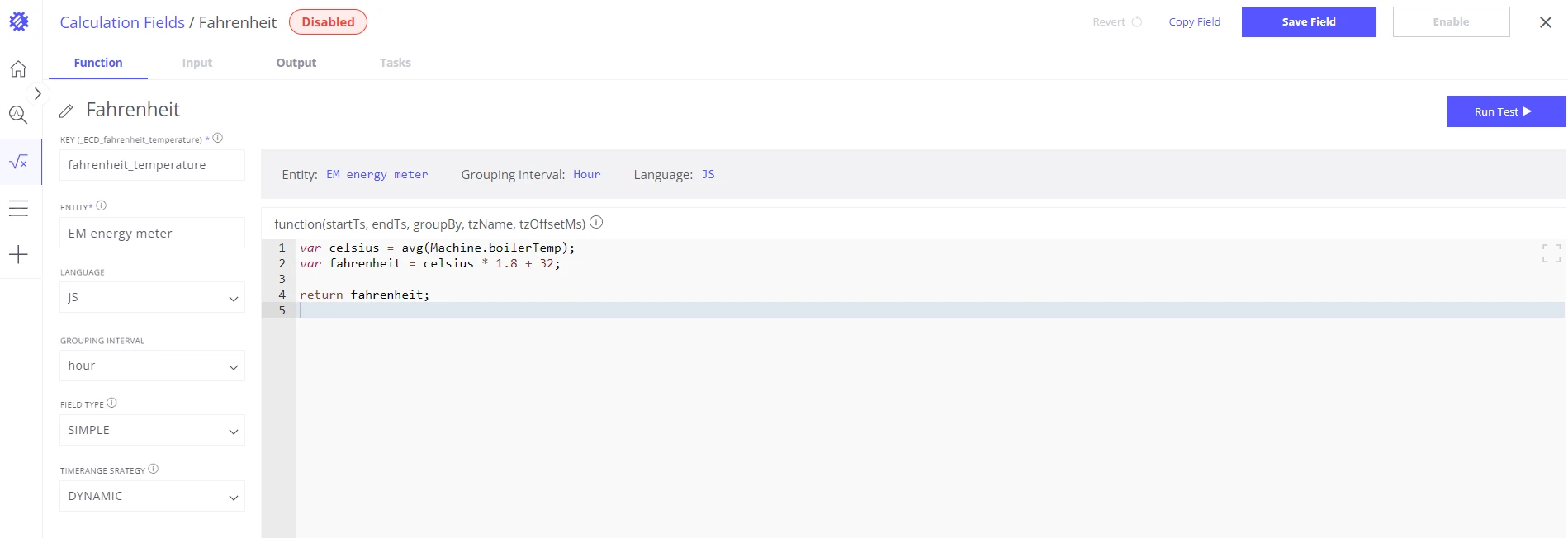
Multiple fields
Section titled “Multiple fields”Calculate total energy consumed by two meters per square meter of apartment area:
  ┌──────────────────────────────────────────────────────┐  │  Apartment (area = 120 m²)                           │  │  CF: (energyConsumption + heatConsumption) / area    │  └──────────────────────┬───────────────────────────────┘                         │ contains             ┌───────────┴───────────┐             ▼                       ▼  ┌────────────────────┐   ┌────────────────────┐  │     HeatMeter      │   │    EnergyMeter      │  │ heatConsumption    │   │ energyConsumption   │  └────────────────────┘   └────────────────────┘
  Result: (200 + 300) / 120 = 4.17 kWh/m²
var energy = sum(energyMeter.energyConsumption);var heat = sum(heatMeter.heatConsumption);var size = uniq(apartment.area);return (energy + heat) / size;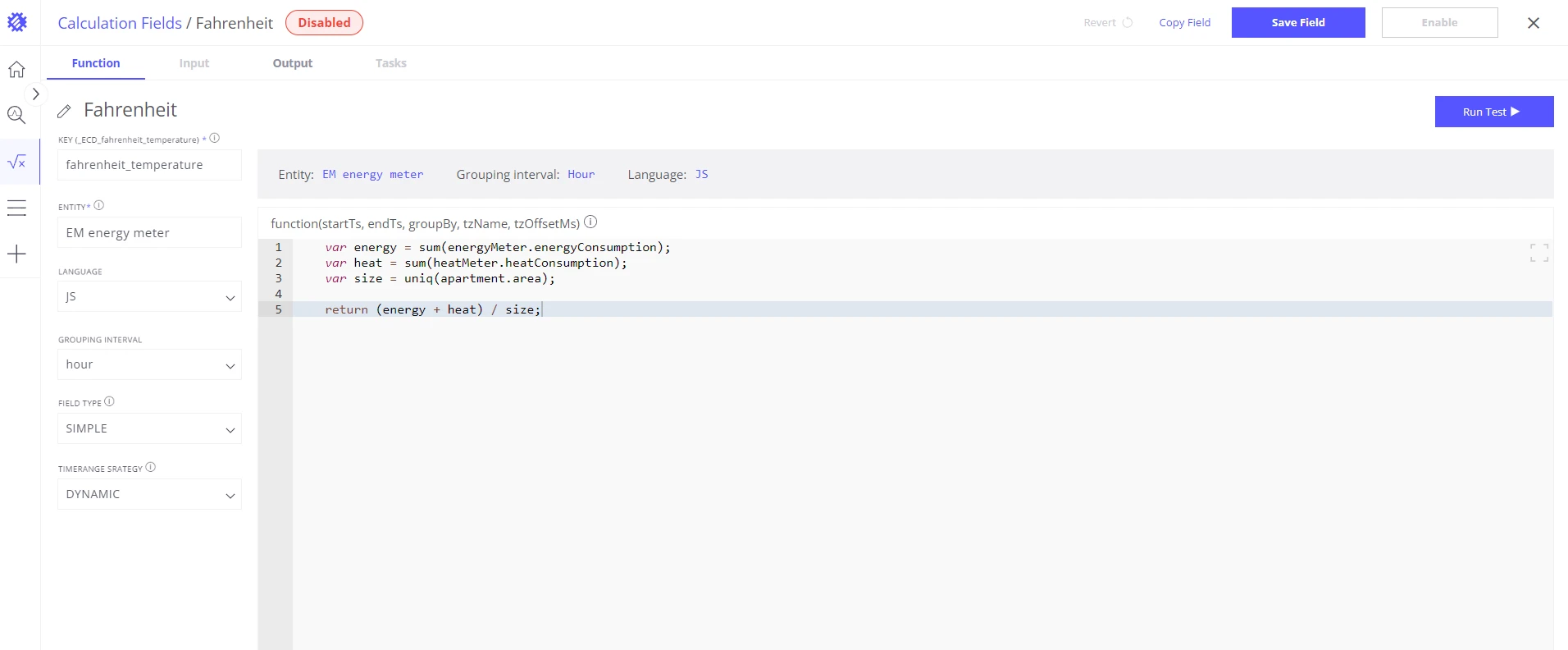
Field reference syntax
Section titled “Field reference syntax”To access a field inside a calculation function, use the three-part reference:
avg(Machine.temperature) │ │ │ │ │ └─ Field name (telemetry key or attribute) │ └────────── Entity name (Asset Type or Device Type) └─────────────── Aggregation function (avg, sum, uniq, …)All three parts are required. Use uniq() when referencing an attribute, an entity name, or an owner name.
Saving and editing calculations
Section titled “Saving and editing calculations”After configuring the calculation, click Save Field in the upper-right corner. The field appears in the business entity list under the name you provided. If a field with the same name or key already exists, the system warns you of the duplicate.
Enabling a calculated field
Section titled “Enabling a calculated field”While saving, you can Enable the field. When enabled, Trendz writes computed results to ThingsBoard as telemetry under the key _ECD_{KEY}.
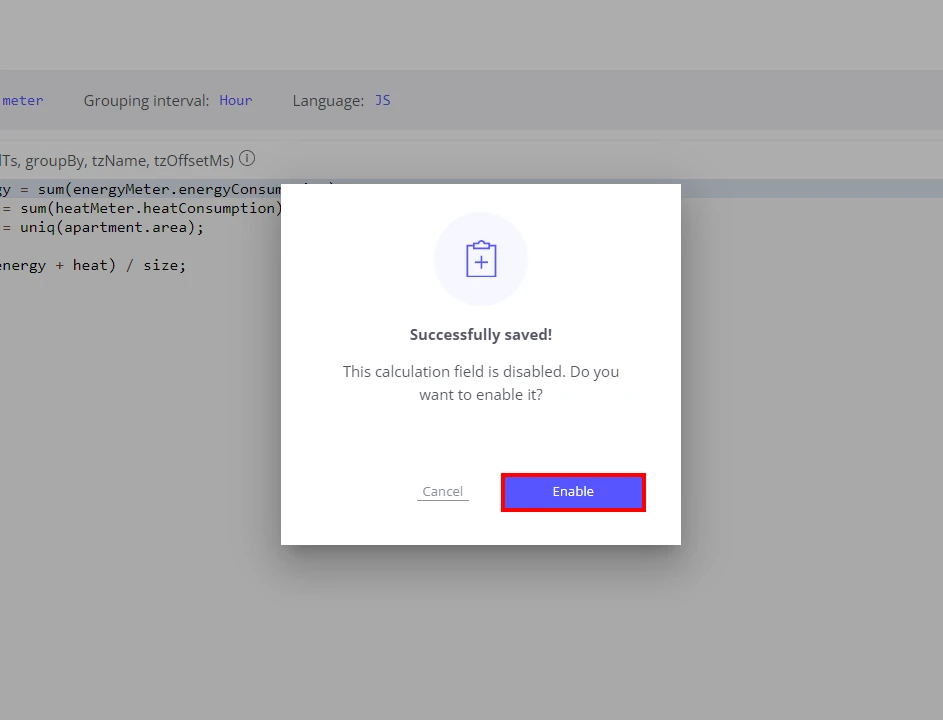
For full details, see Save Calculation to ThingsBoard.
Modifying a saved calculation
Section titled “Modifying a saved calculation”-
Open the saved calculation and make your changes.
-
Click Save Field again. Trendz prompts you to propagate the changes to all view fields that use this calculation — confirm to update them automatically.
-
If the field was enabled, go to the Tasks tab and click Run Reprocess Task to apply the updated formula to all historical data.
Using calculations in view fields
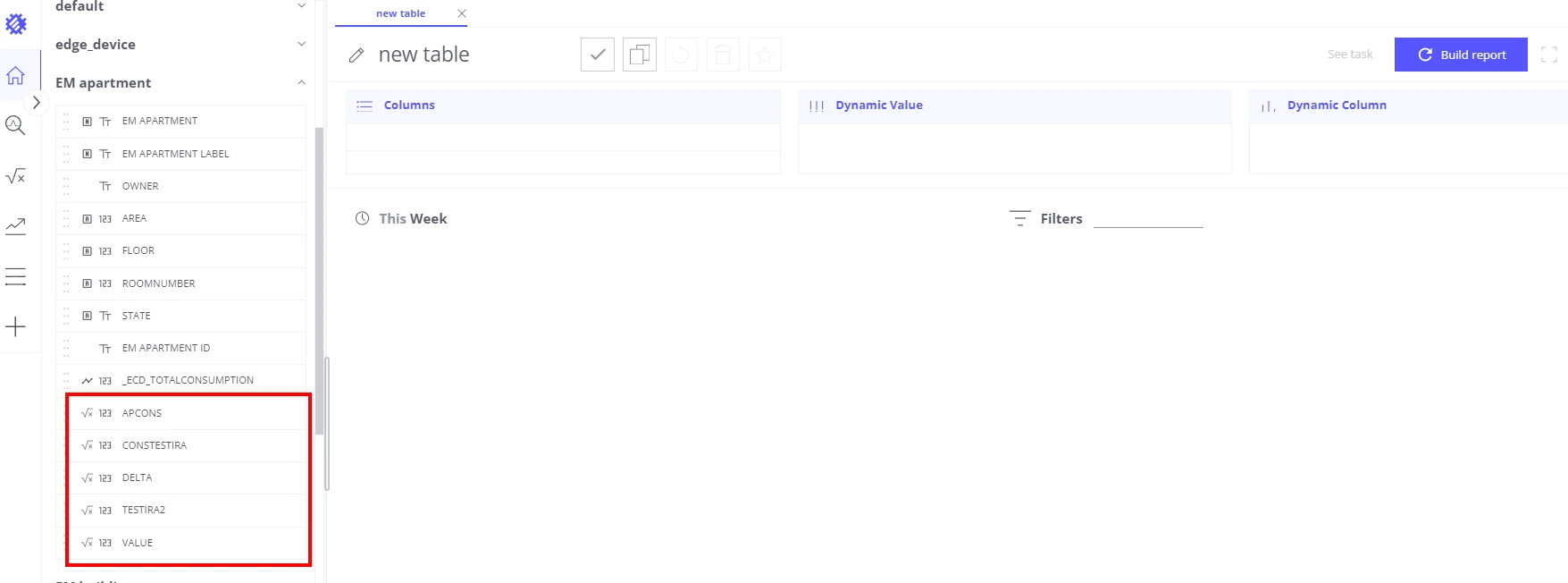
Section titled “Using calculations in view fields”Once saved, a calculated field appears in the business entities panel under the name you assigned it and can be added to any view.
Real-time (RT) vs ThingsBoard (TB) data:
| Mode | Description |
|---|---|
| TB | Reads pre-computed results stored in ThingsBoard. Fast to render; updates on the schedule configured in the task settings. Preferred for dashboards and large datasets. |
| RT | Computes the result on demand from current raw telemetry. Always up to date but slower — use only for small datasets or when TB data is not yet available. |
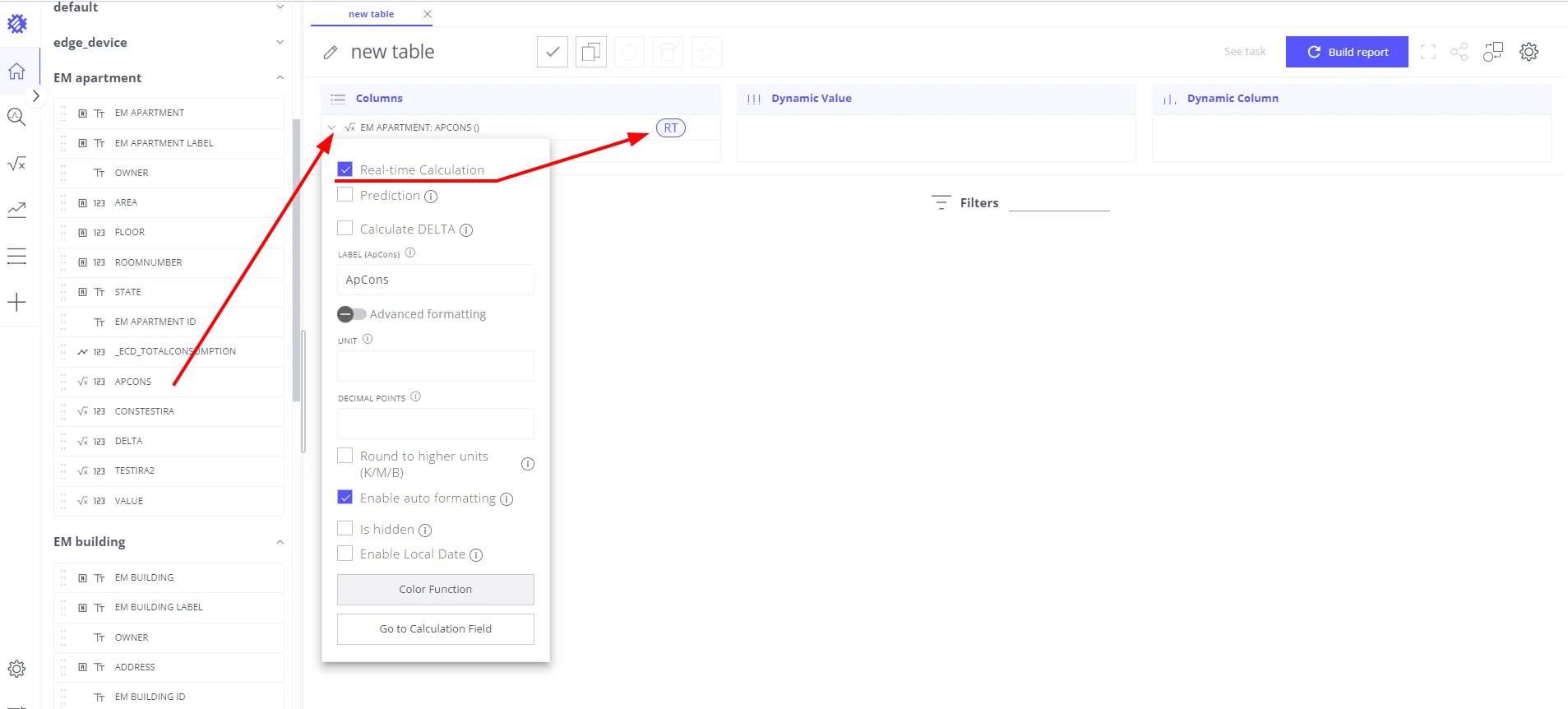
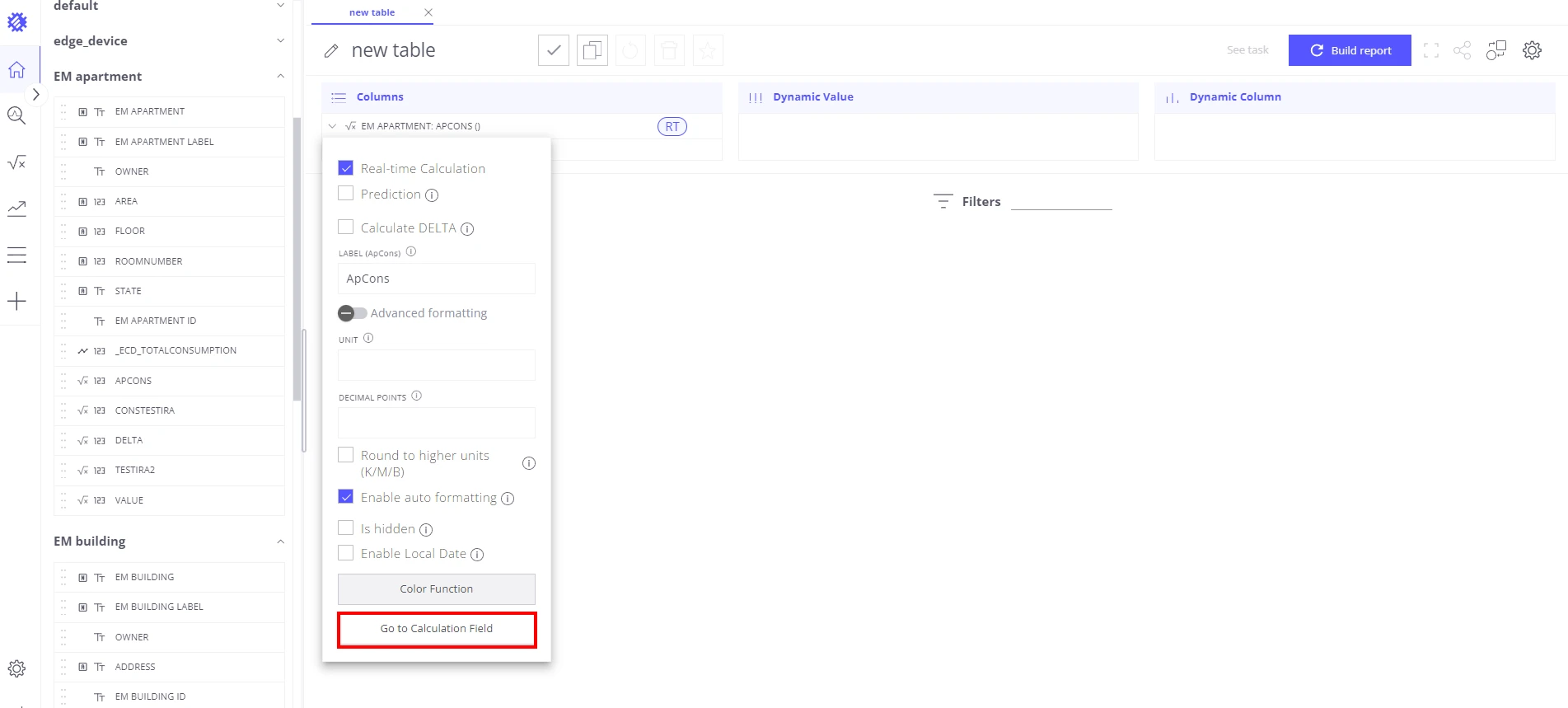
To adjust a calculation directly from a view field, click Go to calculation field in the view field configuration panel.
Disabled calculations
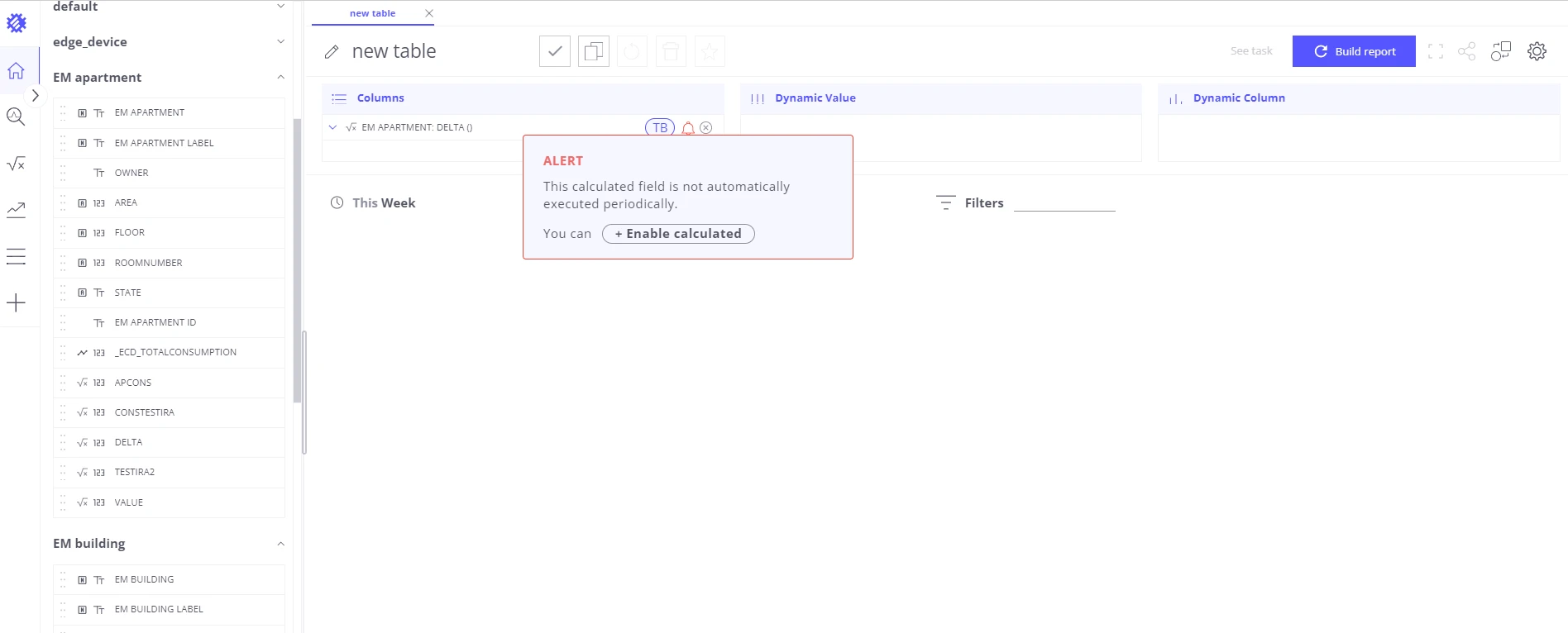
Section titled “Disabled calculations”A calculated field that is not enabled still appears in the business entities list and can be dragged into any chart. However, a red bell icon appears next to it in the chart-building area as a reminder that the field is not persisted to ThingsBoard.
Click the red bell icon to navigate directly to the calculated field and enable it.
Was this helpful?