
White Labeling
White labeling lets you customize the Trendz UI to match your brand — change the logo, browser tab title, URL path, and color scheme. Settings are configured per-tenant and apply to all users within that tenant.
Open the Settings page and navigate to the White Labeling section.
Logo and favicon
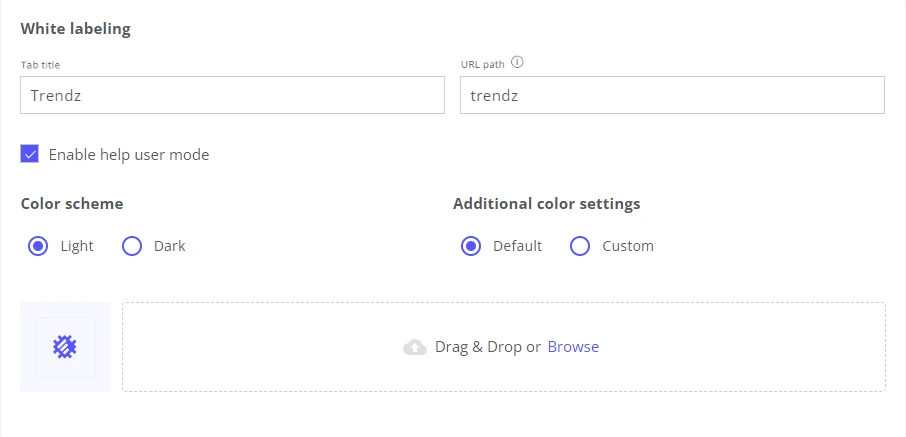
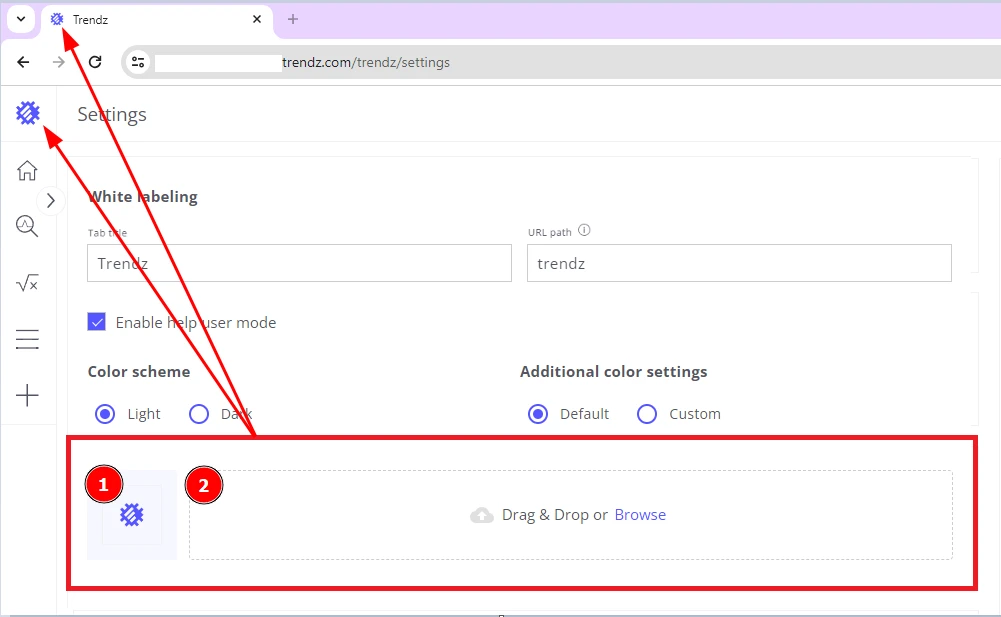
Section titled “Logo and favicon”Upload a custom image to replace the default Trendz logo and browser tab icon (favicon).
- All major image formats are supported. Recommended size: 64 × 64 px (other sizes are scaled automatically).
- Upload by drag and drop or by clicking the upload area to open a file browser.
- Click Save after uploading — the logo and favicon update immediately.
Browser tab title
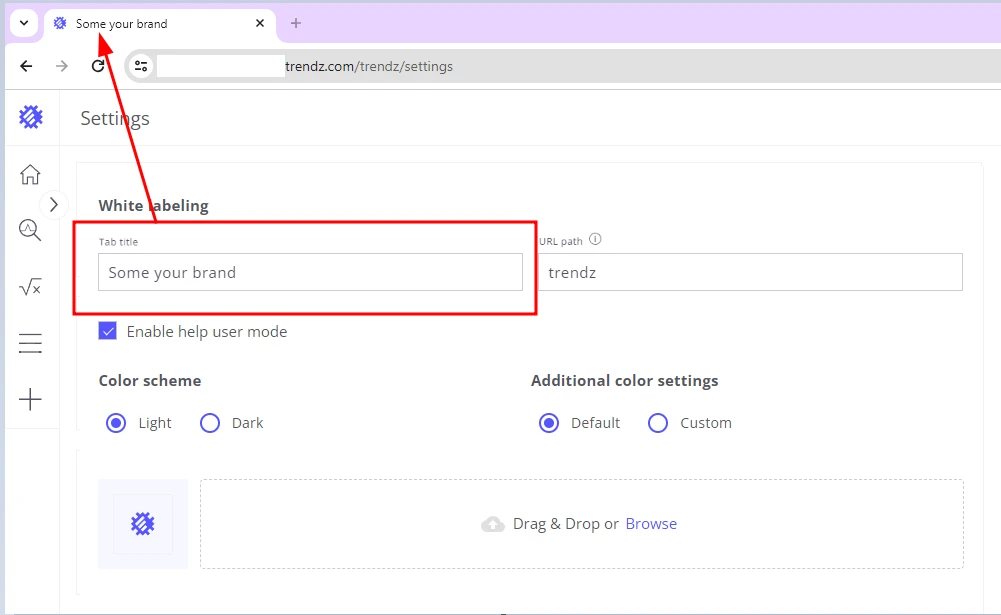
Section titled “Browser tab title”Set a custom title that appears in the browser tab.
- Maximum length: 128 characters (most browsers display fewer).
URL path
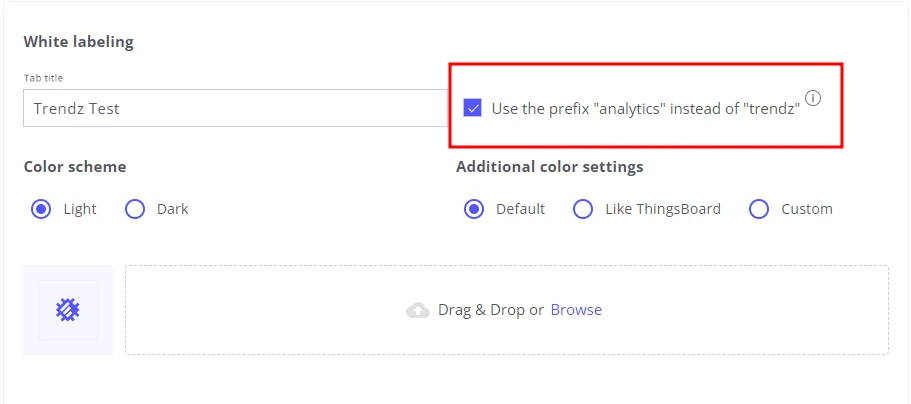
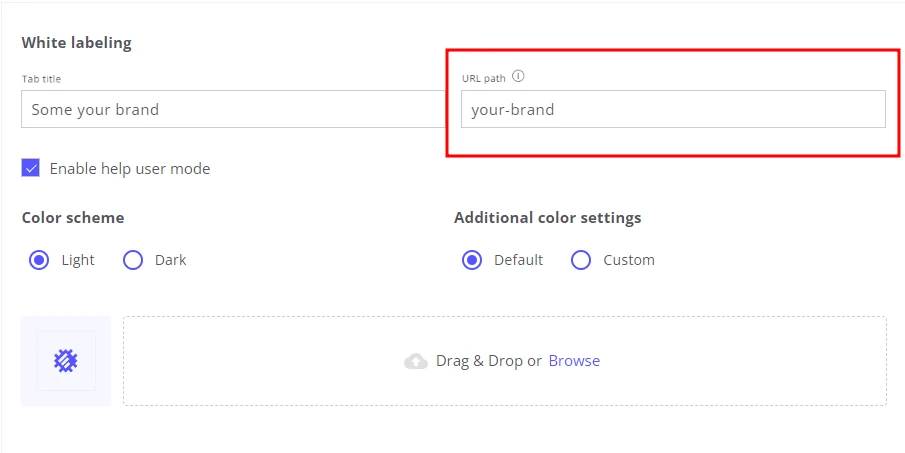
Section titled “URL path”Customize the path segment appended to your domain in the Trendz loading URL.
| Installation type | Behavior |
|---|---|
| Self-managed | Enter any text (up to 128 characters). Use hyphens to separate words for a clean URL. |
| Trendz Cloud | Custom text is not supported — only the generic word analytics is allowed. |
Color scheme
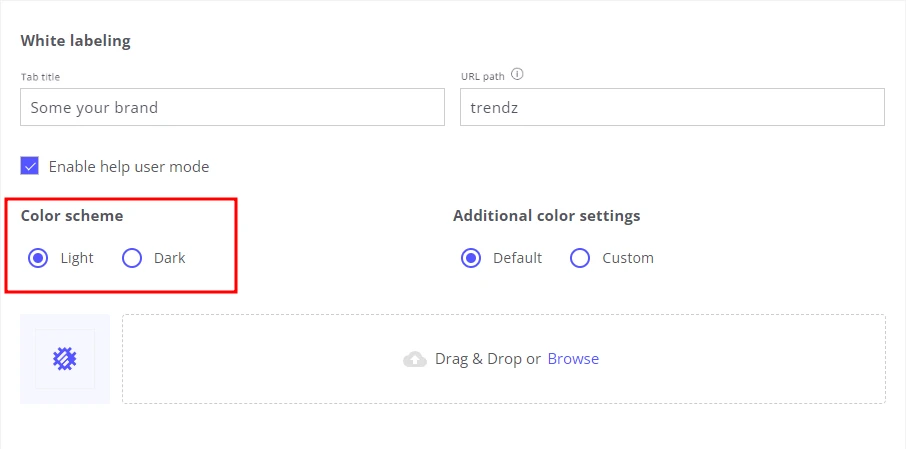
Section titled “Color scheme”Choose between two global color themes for the Trendz interface:
| Option | Description |
|---|---|
| Light | Bright, high-contrast layout. |
| Dark | Darker background — easier on the eyes in low-light environments. |
Additional color settings
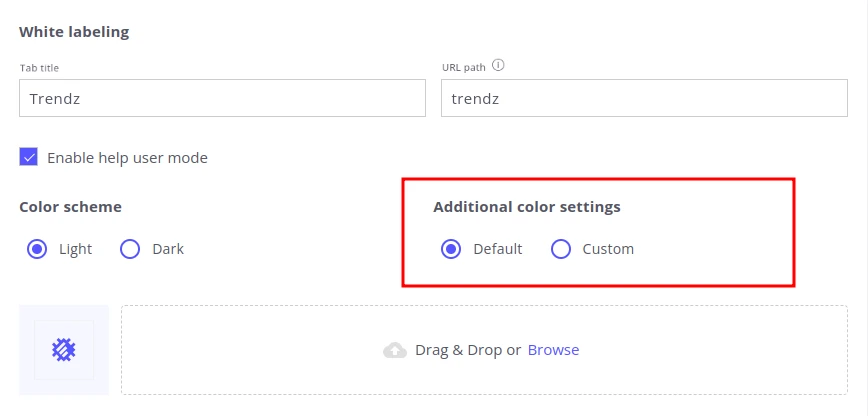
Section titled “Additional color settings”Fine-tune specific UI colors beyond the base theme.
| Option | Description |
|---|---|
| Default | Uses the system color definitions from the active theme. |
| Custom | Lets you override the Primary and Contrast colors to match your brand. |
Help user mode
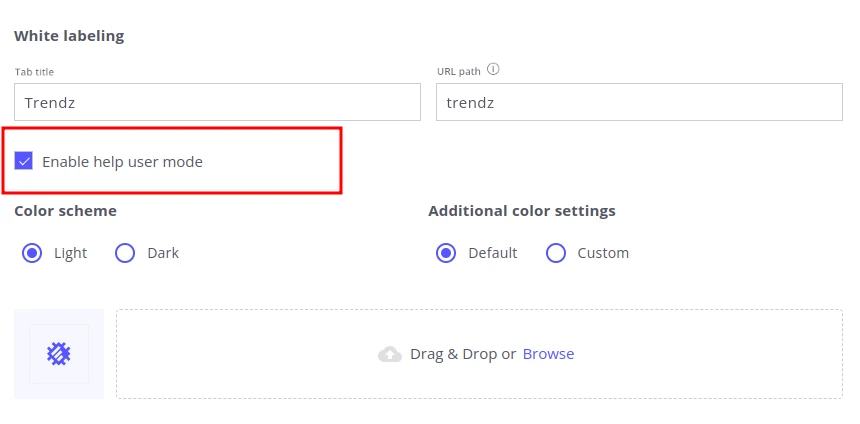
Section titled “Help user mode”When enabled, Trendz displays contextual tips and guidance throughout the interface to help users learn features as they work.
Toggle this on for teams that are new to Trendz or are onboarding additional users. It can be turned off once users are familiar with the application.
Was this helpful?