
Advanced Analytics Bundle
All visualizations created in Trendz Analytics can be added to ThingsBoard dashboards. The Advanced analytics Bundle is a widget collection that must be imported into the ThingsBoard Widgets Library. Once imported, you can use it to embed Trendz views into any dashboard and share analysis results with other users.
Import the bundle
Section titled “Import the bundle”ThingsBoard 4.3+ and Trendz 1.15+
Section titled “ThingsBoard 4.3+ and Trendz 1.15+”Starting from ThingsBoard 4.3 and Trendz 1.15, Trendz widgets are managed at the sysadmin level and upgraded automatically. No manual import is required. The only prerequisite is that Trendz must be connected to ThingsBoard. See Step 6 of the installation guide for connection instructions.
Once Trendz is synced with ThingsBoard, the system bundle Advanced analytics Bundle appears in the Widgets Library.
ThingsBoard 3.4+ and Trendz 1.9+
Section titled “ThingsBoard 3.4+ and Trendz 1.9+”-
Open the Trendz settings page as a tenant administrator.
-
Scroll to the Trendz Widget Bundle Management section.
-
Click Upload bundle to add the Trendz widget library to ThingsBoard. If ThingsBoard already contains the bundle but it is outdated, the same button applies the latest changes.
For bundle upgrade steps after a ThingsBoard version upgrade, see Trendz Widget Bundle.
ThingsBoard 3.3+ and Trendz 1.8+
Section titled “ThingsBoard 3.3+ and Trendz 1.8+”Starting from ThingsBoard 3.3 and Trendz 1.8, Trendz widgets can be natively embedded into ThingsBoard dashboards. Native widgets perform significantly faster than the older iFrame-based approach.
Step 1 — Add the native Trendz library to ThingsBoard extensions:
-
Download the Native Trendz Library.
-
Deploy the library to the ThingsBoard extensions directory:
Terminal window scp trendz-tb-lib-1.8.0-SNAPSHOT.jar ubuntu@$\{THINGSBOARD_SERVER\}:~/.ssh $\{THINGSBOARD_SERVER\}sudo cp trendz-tb-lib-1.0.0-SNAPSHOT.jar /usr/share/thingsboard/extensions/sudo chown thingsboard:thingsboard /usr/share/thingsboard/extensions/trendz-tb-lib-1.0.0-SNAPSHOT.jar -
Restart the ThingsBoard service:
Terminal window sudo service thingsboard restart
Step 2 — Import the native Trendz widget bundle:
-
Download Native Trendz widgets bundle.
-
Log in to ThingsBoard as a tenant administrator and navigate to Widget Library.
-
Click Add new widget bundle and select Import widget bundle.
-
Import the downloaded bundle.
ThingsBoard 3.0–3.2
Section titled “ThingsBoard 3.0–3.2”-
Download Trendz widgets bundle V3.
-
Log in to ThingsBoard as a tenant administrator and navigate to Widget Library.
-
Click Add new widget bundle and select Import widget bundle.
-
Import the downloaded bundle.
ThingsBoard 2.x
Section titled “ThingsBoard 2.x”-
Download Trendz widgets bundle V2.
-
Log in to ThingsBoard as a tenant administrator and navigate to Widget Library.
-
Click Add new widget bundle and select Import widget bundle.
-
Import the downloaded bundle.
Bundle contents
Section titled “Bundle contents”The bundle includes four widgets:
| Widget | Description |
|---|---|
| Trendz View Static | Embeds a saved Trendz visualization into a ThingsBoard dashboard |
| Trendz View Latest | Like Trendz View Static, but also supports dashboard aliases for resolving entities dynamically |
| Trendz Chat Assistant | An interactive chat interface for quick data retrieval and analysis |
| Trendz Builder (Deprecated) | A self-service visualization builder for end users |
Troubleshooting
Section titled “Troubleshooting”Blank widget with error (ThingsBoard 3.5+)
Section titled “Blank widget with error (ThingsBoard 3.5+)”Starting from ThingsBoard 3.5, the Angular version was upgraded to 15. The standard library link loads a build compiled against Angular 12, which is incompatible. To fix this:
-
Update Trendz to version 1.10.1 or higher. If you are on Trendz Cloud, skip this step.
-
Log in to ThingsBoard as a tenant administrator.
-
Navigate to Resources → Widgets Library, then select and open Trendz Bundle for editing.
-
For each widget in the bundle:
- Open the widget for editing.
- Switch to the Resources tab (top-left corner).
- Replace the Trendz library URL:
- ThingsBoard/Trendz Cloud (North America):
https://thingsboard.cloud/trendz/bundle/trendz-tb-lib.js - ThingsBoard/Trendz Cloud (Europe):
https://eu.thingsboard.cloud/trendz/bundle/trendz-tb-lib.js
- ThingsBoard/Trendz Cloud (North America):
- Save the widget.
-
Reload your dashboard — the widgets should now work.
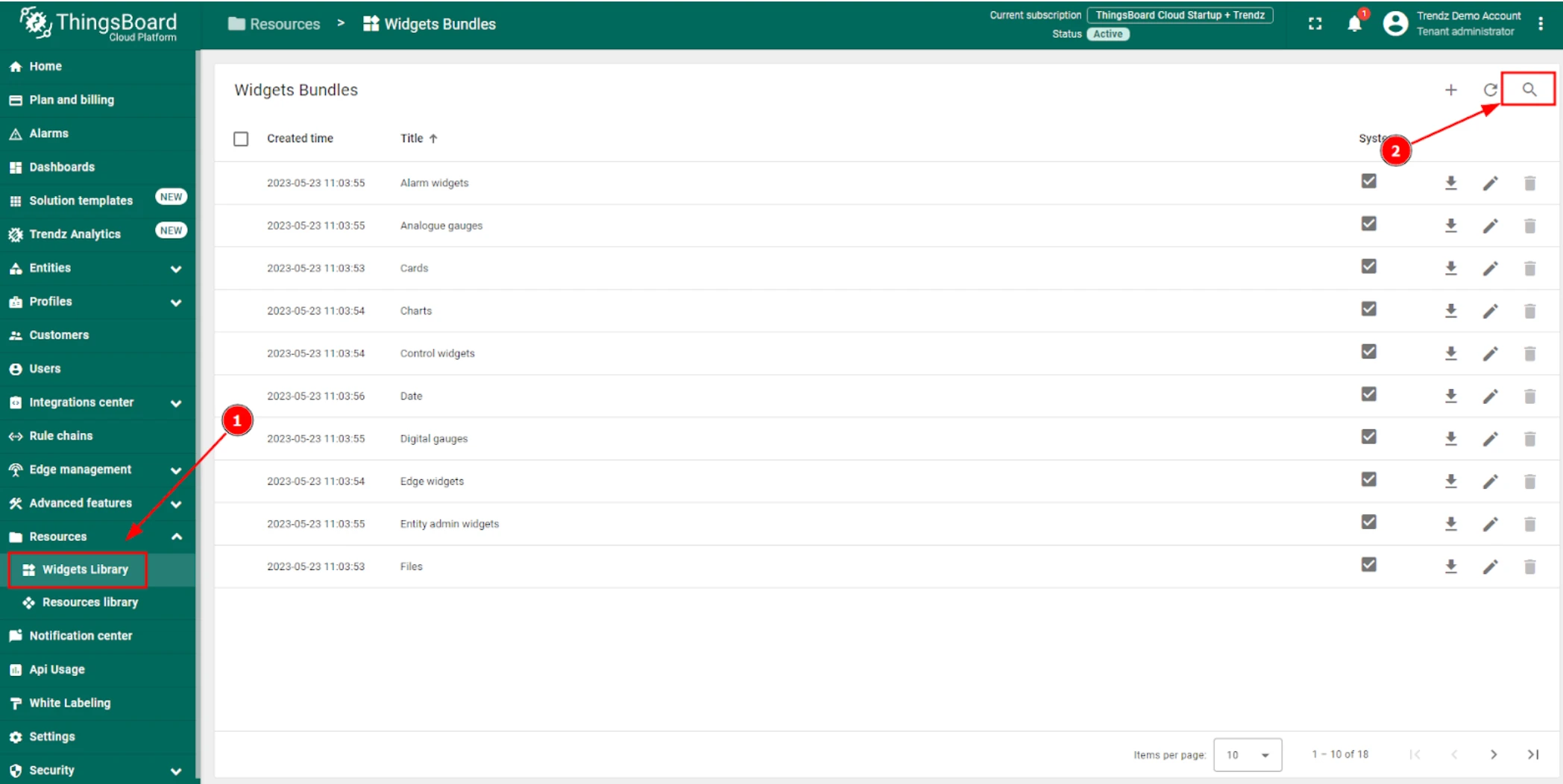
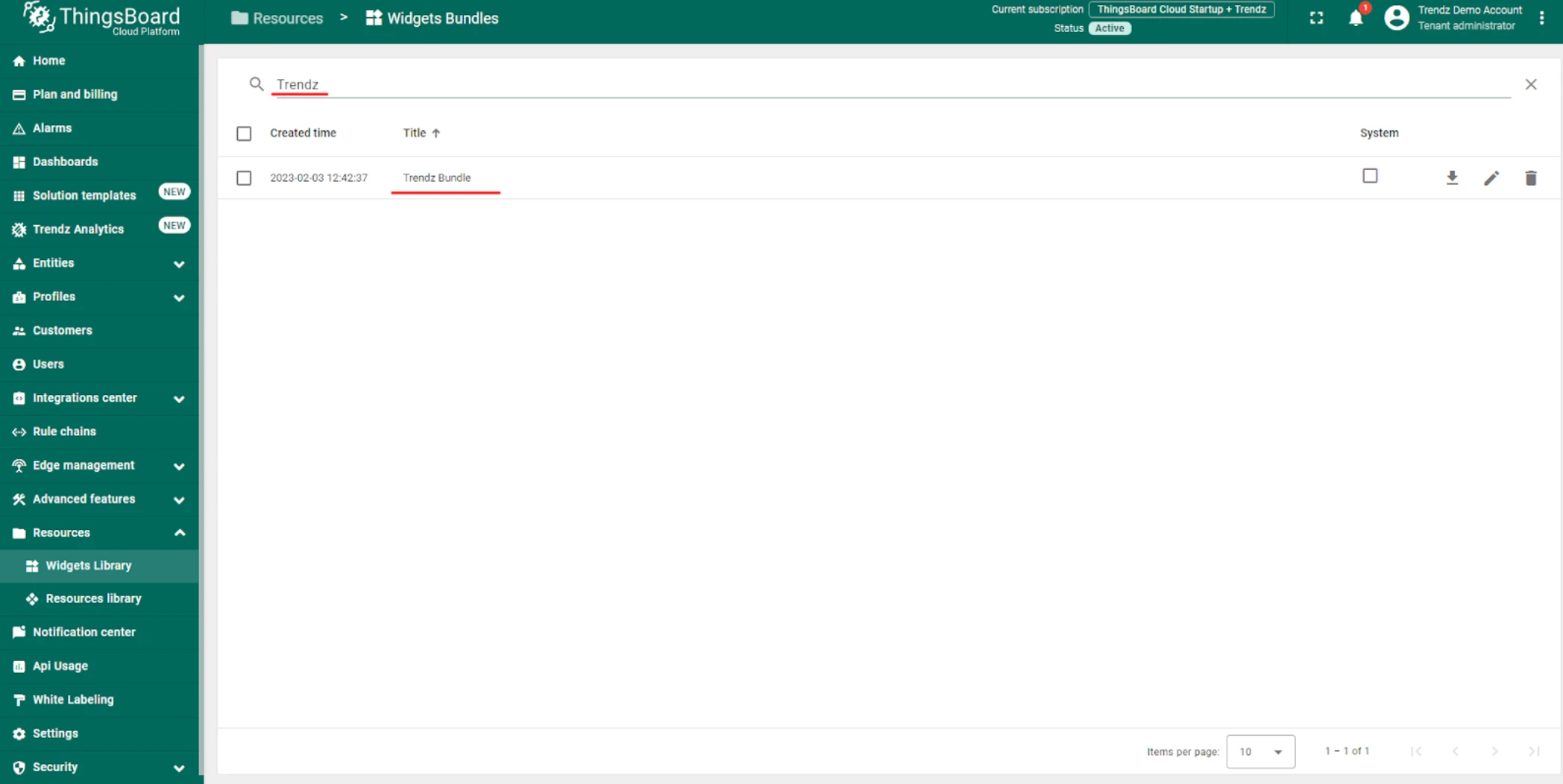
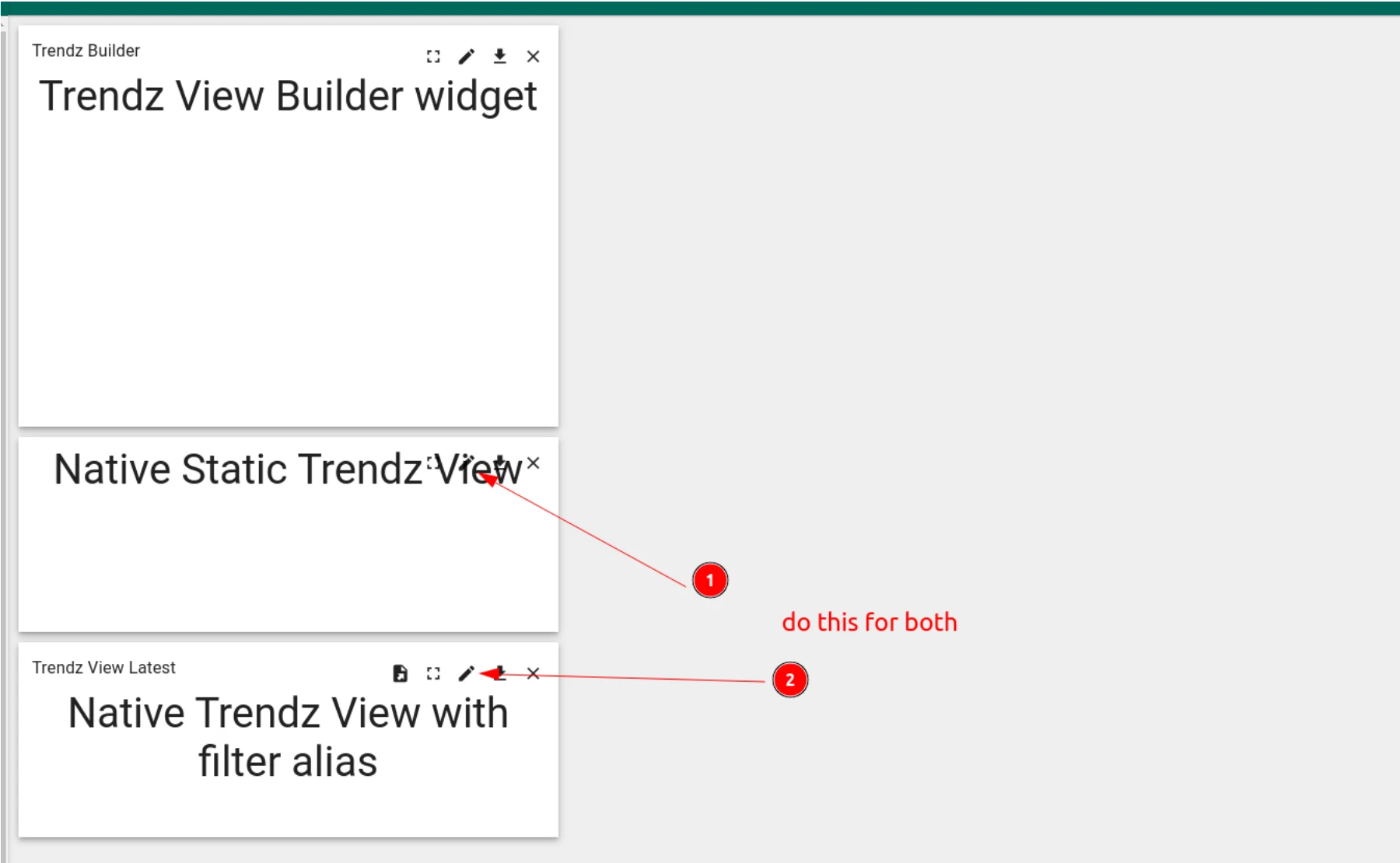
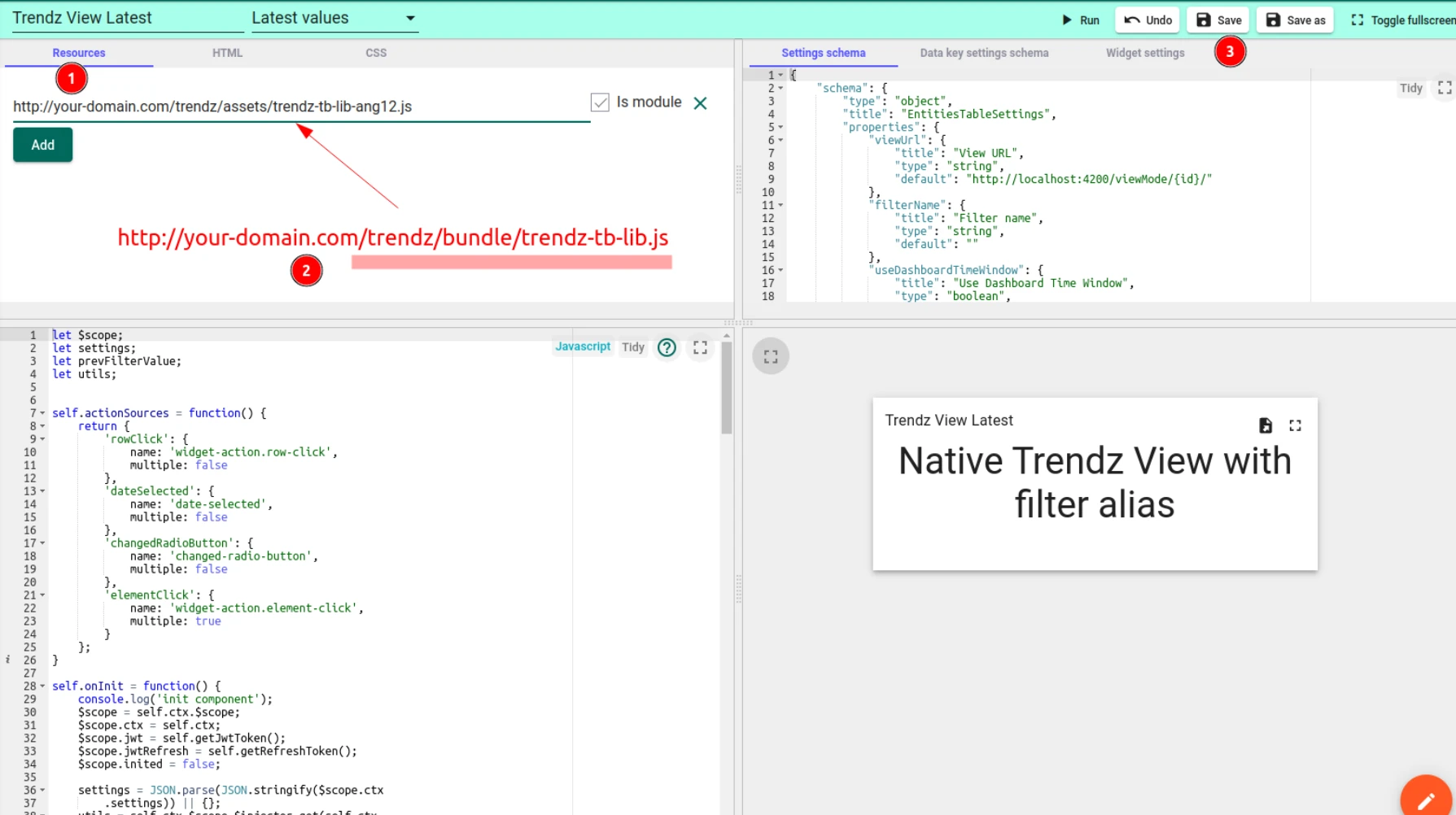
Wrong bundle version
Section titled “Wrong bundle version”If widgets show a blank screen after import, verify that you downloaded the bundle for the correct ThingsBoard version. The widget API in ThingsBoard 2.x and 3.x is different — importing the wrong version will cause widgets to fail silently.
HTTPS/HTTP mismatch
Section titled “HTTPS/HTTP mismatch”If ThingsBoard uses HTTPS and the link to the Trendz library uses HTTP, the browser blocks the request as mixed content. Enable HTTPS for Trendz to resolve this.
Was this helpful?